Your workspace
The workspace is the screen a State Party or a REC lands on when it opens System integration. Use it to create the credentials your customs system signs in to ITS with, to follow the four Sandbox checks as your system passes them, and to replace a secret that was lost or exposed.
Before you start
- You need Organisation admin or Partner in your own organisation. Both see the same workspace and can do everything on this page. See What each role can do.
- The Secretariat must have onboarded your organisation. See Onboarding.
- Have ready the place where your team stores secrets. ITS shows a client secret once, and never again.
- The requests themselves are sent by your system, not typed into the portal. Authentication explains them.
The workspace at a glance
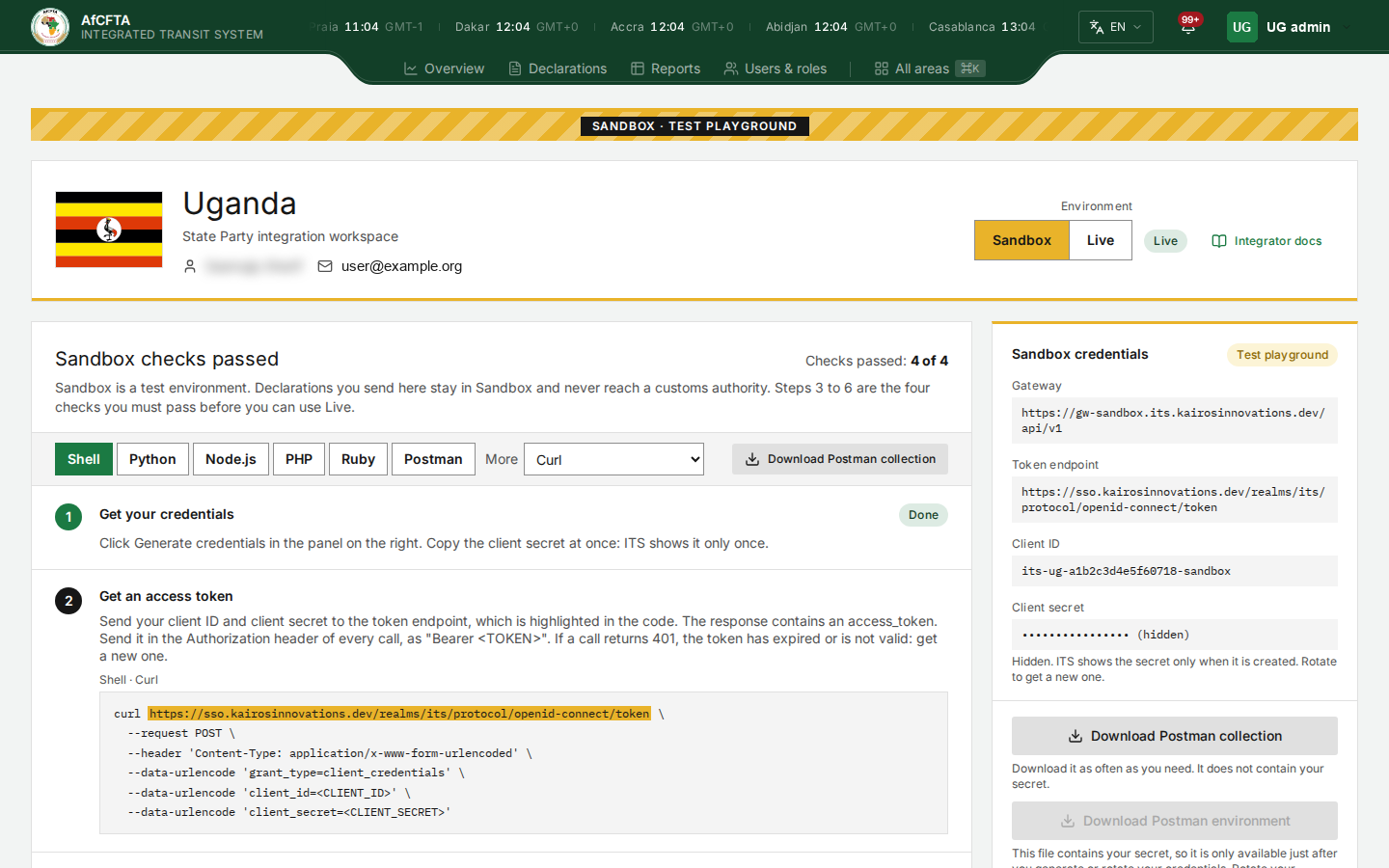
| Part | What it shows |
|---|---|
| Band at the top | SANDBOX · TEST PLAYGROUND, in amber stripes, whenever you are on the Sandbox side. Live has no band |
| Header | Your flag (or your REC's badge), your organisation's name, State Party integration workspace or REC integration workspace, and the technical contact's name and email address |
| Environment | The switch between Sandbox and Live. See Sandbox and Live |
| State tag | Your organisation's state, for example Admitted, In Sandbox, Certified, Live approved or Live. See The states of an organisation |
| Integrator docs | Opens the integration documentation. Depending on the installation it opens inside the portal or in a new browser tab |
| Left column | In Sandbox, the guide Get started in Sandbox, which is headed Sandbox checks passed once all four checks have passed. In Live, your Live status and Announcements to your system |
| Right column | Sandbox credentials or Live credentials, for the side you are on, and under it Live is locked while Live is closed |
| DOCUMENTATION | Read the integration docs, with Open the integration docs, Open the API reference and four cards: How ITS works, API reference, Error codes, Receiving announcements |
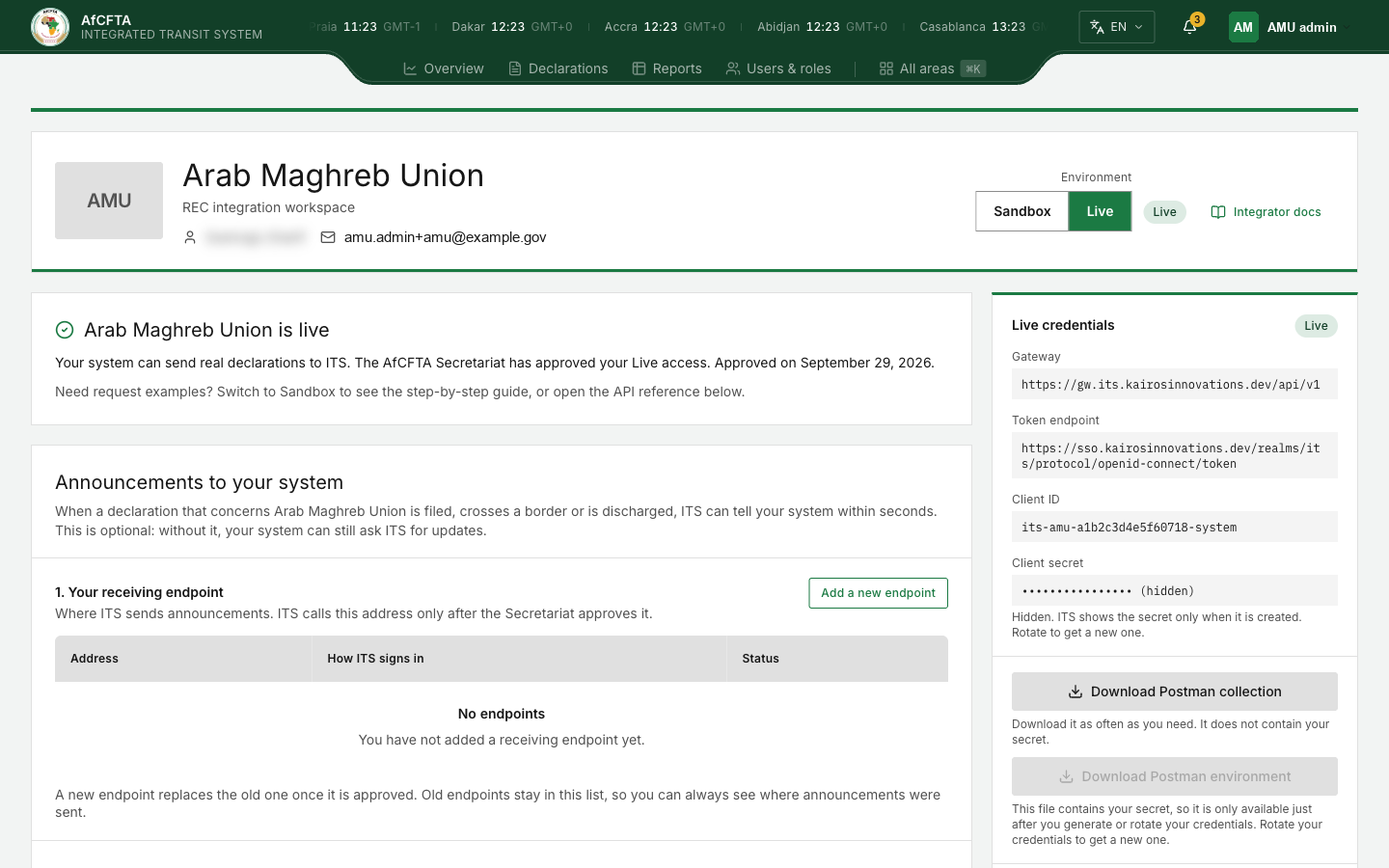
A REC's administrator also sees the link Organisations you file for above the header, when the REC files for at least one onboarded member State. It opens the register, limited to the REC and those members.
Generate your Sandbox credentials
You do this once, as the first step after the Secretariat onboards you.
- Open System integration. The Sandbox credentials panel on the right is blurred, with one button over it.
- Select Generate credentials. The window Generate Sandbox credential opens and says: "The client secret is shown once. Prepare the system where you will store it before continuing."
- Select Generate Sandbox credential, or Cancel to close the window and create nothing.
- Wait while the window reads Creating your credential… Keep the page open. If it takes more than a few seconds the window adds "This is taking longer than expected. Keep this page open; there is no need to press Generate again."
- When the window closes, the panel shows your Client ID and your Client secret, with "ITS shows this only once. Copy it now, or download the environment file." Select Copy and store the secret, or select Download Postman environment (see The Postman files).
Step 1 of the guide changes from To do to Done, and your organisation moves from Admitted to In Sandbox.
The secret is held only by the page you are looking at. If you reload, sign out or close the tab before storing it, it is gone: the panel then reads •••••••••••••••• (hidden) with "Hidden. ITS shows the secret only when it is created. Rotate to get a new one." The only way to a secret after that is to rotate.
If generating does not work
| What you see | What it means | What to do |
|---|---|---|
| The identity service is taking longer: "The identity service is slow to respond. Try again in a moment; your request is safe to repeat." | The portal tried for about half a minute and got no answer | Select Try again. Repeating never creates a second credential |
| Could not create the credential, followed by a code and a message | ITS refused the request | Read the message. Look the code up in the error catalogue, and see Errors and troubleshooting |
| No Generate credentials button, and "No Sandbox credential is recorded for this organisation." | Your organisation is not in a state that allows a first credential | Ask the Secretariat to check your organisation's state |
The credentials panel
| Field or button | What it is |
|---|---|
| Sandbox credentials · Test playground, or Live credentials · Live | Which side the values belong to. The two sides never share a credential |
| Gateway | The address your system sends its requests to on this side |
| Token endpoint | The address your system asks for an access token |
| Client ID | Your system's identifier on this side. It stays visible |
| Client secret | Shown once, just after you generate or rotate. Otherwise (hidden) |
| Download Postman collection | Greyed out until a credential exists. "Download it as often as you need. It does not contain your secret." |
| Download Postman environment | Available only just after you generate or rotate, and only once |
| Rotate credentials | Replaces the secret. See Rotate your credentials |
The addresses for each environment are also on the Environments page.
The Postman files
Postman is a tool many teams use to try requests by hand before they write code. The workspace offers two files for it.
- Download Postman collection holds the requests of the guide, ready to run. It contains no secret, so you can download it as often as you like, from the panel or from the bar above the guide.
- Download Postman environment holds your client ID and your secret. You can download it once, straight after generating or rotating. The button then reads Environment file downloaded, with a padlock: "This file contained your secret, so it cannot be downloaded again. Rotate your credentials to get a new one." After a reload the button is greyed out for the same reason.
Treat the environment file as you treat the secret itself.
Pass the four Sandbox checks
The left column in Sandbox is a guide of six steps. Steps 1 and 2 prepare your system; steps 3 to 6 are the four checks. ITS marks a check as passed when it accepts the matching request from your system in Sandbox. Nothing is ticked by hand, and opening a page in the portal does not pass a check.
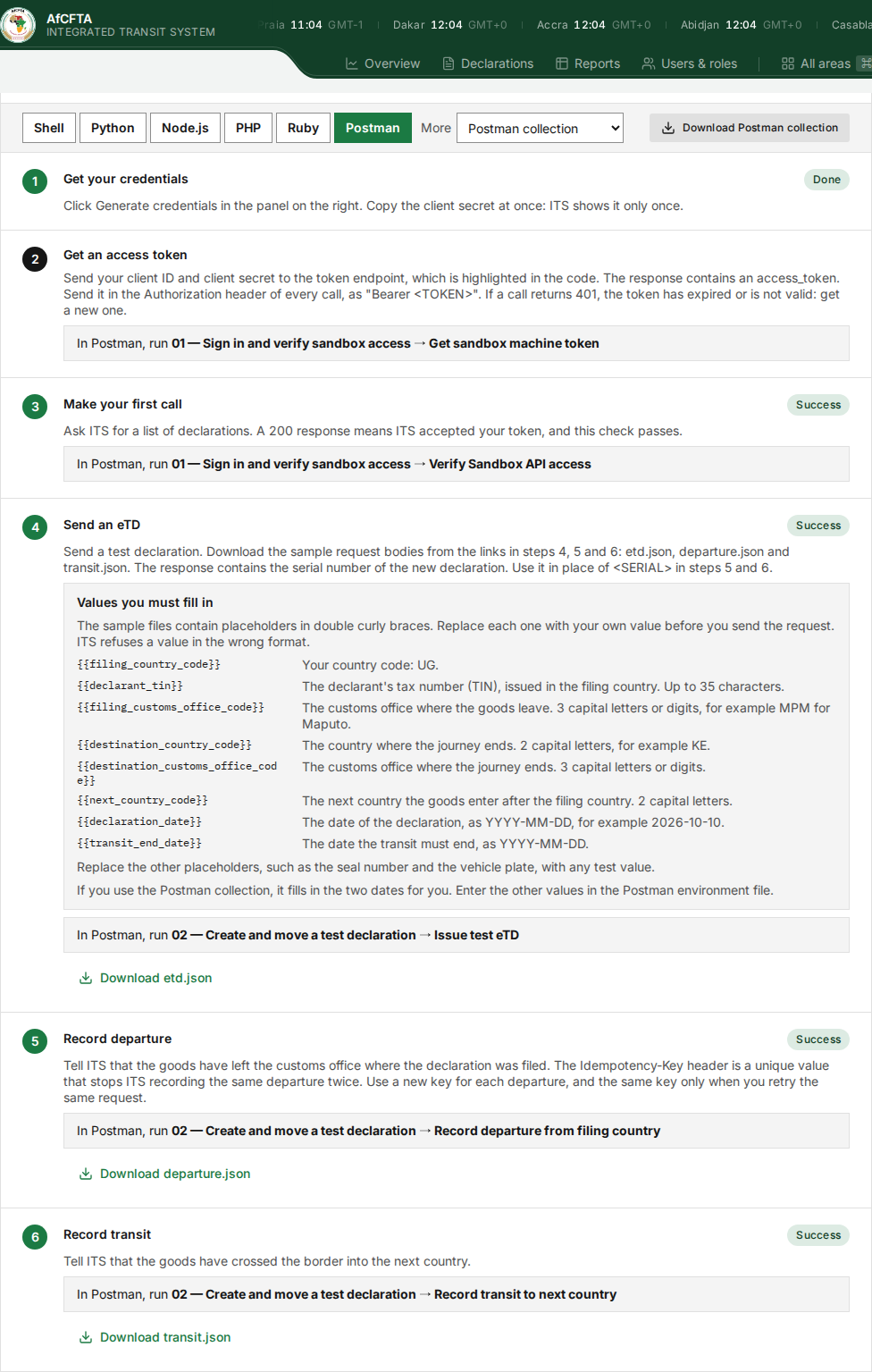
| Step | Title | Tag | It is passed when |
|---|---|---|---|
| 1 | Get your credentials | To do or Done | A Sandbox credential exists |
| 2 | Get an access token | none | Not a check: your system needs a token for every call |
| 3 | Make your first call | Pending or Success | ITS accepts your token on a request for a list of declarations |
| 4 | Send an eTD | Pending or Success | ITS accepts a test declaration and returns its serial number |
| 5 | Record departure | Pending or Success | ITS records the departure of that declaration |
| 6 | Record transit | Pending or Success | ITS records that declaration crossing the border into the next country |
Above the steps:
- Checks passed: 2 of 4 counts the checks that read Success.
- The code language bar chooses how the examples are written: Shell, Python, Node.js, PHP, Ruby or Postman, and more under More. Your browser remembers the choice. With Postman chosen, each step names the request to run in the collection instead of showing code.
- Download Postman collection downloads the same collection as the panel.
- Steps 4, 5 and 6 each have a link to a sample request body: Download etd.json, Download departure.json and Download transit.json.
Values you must fill in
Under step 4 a box, Values you must fill in, lists the placeholders in the sample files that your system must replace before it sends them: "The sample files contain placeholders in double curly braces. Replace each one with your own value before you send the request. ITS refuses a value in the wrong format."
| Placeholder | What to put in it |
|---|---|
{{filing_country_code}} | For a State Party, its own code, for example "Your country code: UG.". For a REC, "The code of the country you file for. 2 capital letters, for example KE." |
{{declarant_tin}} | "The declarant's tax number (TIN), issued in the filing country. Up to 35 characters." |
{{filing_customs_office_code}} | "The customs office where the goods leave. 3 capital letters or digits, for example MPM for Maputo." |
{{destination_country_code}} | "The country where the journey ends. 2 capital letters, for example KE." |
{{destination_customs_office_code}} | "The customs office where the journey ends. 3 capital letters or digits." |
{{next_country_code}} | "The next country the goods enter after the filing country. 2 capital letters." |
{{declaration_date}} | "The date of the declaration, as YYYY-MM-DD, for example 2026-10-10." |
{{transit_end_date}} | "The date the transit must end, as YYYY-MM-DD." |
The other placeholders, such as the seal number and the vehicle plate, take any test value in Sandbox and the real values in Live. If you use the Postman collection, it fills in the two dates for you; you enter the other values in the Postman environment file.
To follow your progress:
- Leave the workspace open on the Sandbox side while your system sends its requests.
- Watch the tags. The page asks ITS again about every ten seconds, and each time you come back to its browser tab, so a tag turns from Pending to Success without a reload.
- When the fourth check passes, the guide's title becomes Sandbox checks passed, the counter reads 4 of 4, and the state tag in the header becomes Certified.
A tag reading Loading status means the page is still asking. Status unavailable, with a red message under the guide's introduction, means the progress could not be read; it says nothing about your checks. Reload the page.
How to build each request, and what to do when one is refused, is in Pass the four checks and the Guides.
Wait for Live to open
Passing the checks does not open Live by itself: the Secretariat reviews your results and approves Live access. Until then the card Live is locked sits under the credentials panel.
| The card says | Meaning |
|---|---|
| "Live opens when you have passed all four checks and the AfCFTA Secretariat has approved your results." | You still have checks to pass |
| "You have passed all four checks. The AfCFTA Secretariat is now reviewing your results." | Nothing more for you to do. The Secretariat approves on its own screen |
There is no button to ask for the review, and the portal does not tell you on this screen when it will happen. Hovering over the greyed-out Live button shows "Locked until you pass the four checks and the Secretariat approves your results".
Generate your Live credentials
Once the Secretariat has approved Live access, the workspace opens on the Live side, the Live is locked card is gone, and the left column reads Your organisation is live with the date of approval.
- Open System integration. Check that Environment is on Live and that there is no amber band.
- In the Live credentials panel, select Generate credentials.
- In the window Generate Live credential, select Generate Live credential.
- When the window closes, copy the Client secret or download the Postman environment, exactly as in Sandbox.
Your organisation's state becomes Live once this credential exists. Until then the header tag reads Live approved.
The Live side has no step-by-step guide. The card says so: "Need request examples? Switch to Sandbox to see the step-by-step guide, or open the API reference below." The four checks are not repeated in Live.
What else the Live side holds is on Announcements to your system.
Rotate your credentials
Rotate when a secret is lost, exposed, or due for replacement. Rotating gives you a new secret for the same client ID, on one side only: Sandbox and Live are rotated separately.
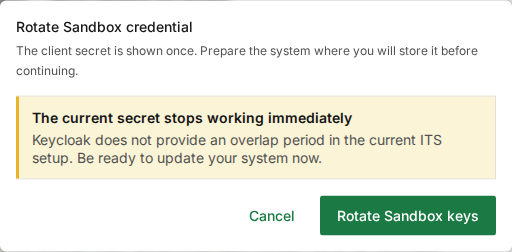
There is no overlap period. From the moment you confirm, your system is refused with the old secret until you have given it the new one. Agree the moment with whoever runs your system.
-
Use Environment to choose the side whose secret you are replacing.
-
At the bottom of the credentials panel, select Rotate credentials.
-
Read the warning The current secret stops working immediately.
-
Select Rotate Sandbox keys (or Rotate Live keys), or Cancel to keep the current secret.
-
When the window closes, copy the new Client secret from the panel, or select Download Postman environment.
-
Give the new secret to your system and check that it can get a token.
The panel shows Rotate credentials once a credential exists on that side. While your organisation is Suspended the button is still shown, but ITS refuses the rotation: the window answers Could not create the credential with the reason.
If your organisation is suspended or withdrawn
| Alert under the header | Meaning |
|---|---|
| Access is suspended, with the reason the Secretariat recorded, or "Machine access is disabled until the Secretariat restores it." | The Secretariat has stopped your system from calling ITS. Nothing on this screen lifts it: contact the Secretariat. When access is restored, your organisation returns to the state it had before |
| Organisation withdrawn: "This organisation is read-only. Contact the Secretariat if this is unexpected." | Your organisation's participation has ended. A withdrawal is final |
If the workspace does not load
| What you see | Meaning |
|---|---|
| "Loading organisation…" | The page is still reading your organisation |
| Could not load this screen, with a message | Your organisation's record could not be read. Reload; if it stays, report the message to the Secretariat |
| "Loading Sandbox credentials…" over the panel | The credentials are still being read |
| A red message over the panel, or "Credentials are unavailable." | The credentials could not be read. Reload the page |
Related pages
- System integration
- Announcements to your system
- Onboarding: the same journey, told as a process.
- Keep access working: tokens and rotation from your system's side.
- Support