Users
The Users tab of Users & roles lists the people in your organisation who can sign in to the ITS portal. From here an administrator adds a colleague, gives them roles, changes their details and records where a customs officer is posted.
You never see, choose or type anyone's password here. A new colleague sets their own password from an e-mail the sign-in service sends them.
Who can open this screen
Anyone whose role reads users: System admin, Secretariat admin and Organisation admin. Each sees only their own organisation's people: the Secretariat sees the Secretariat's accounts, Tunisia sees Tunisia's, IGAD sees IGAD's.
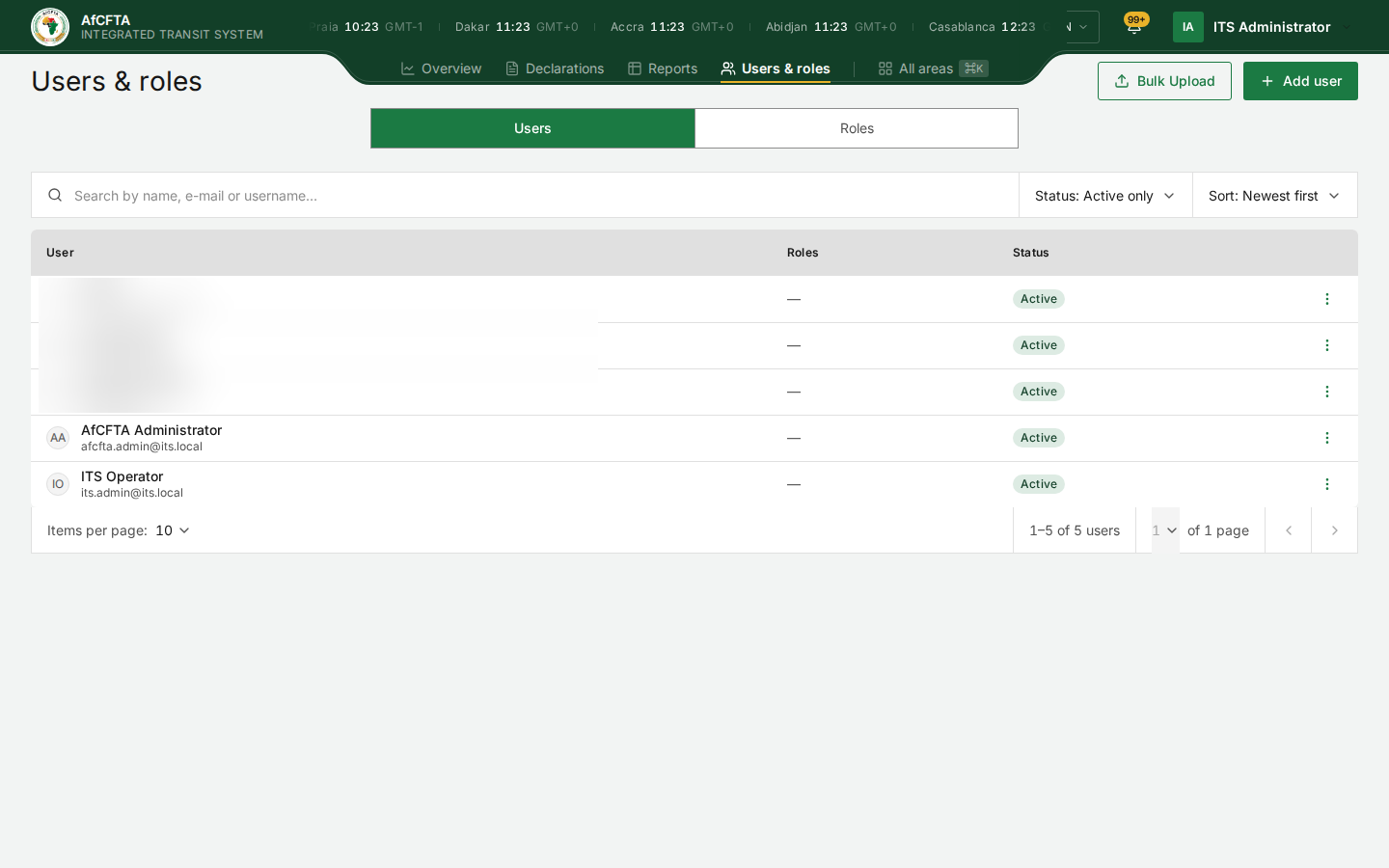
| Secretariat (System admin) | State Party or REC administrator | |
|---|---|---|
| Users and Roles tabs | Both | Users only. There is no Roles tab. |
| Bulk Upload, Add user | Shown and working | Shown, but Add user opens nothing (see below) |
| Row menu | Edit (and Deactivate on others' accounts) | Edit, which opens nothing |
| The roles you may give | Secretariat admin, Organisation admin, Customs officer, Departure authority, Partner | A State Party: Customs officer, Departure authority. A REC: Customs officer |
| Secretariat | State Party | REC |
|---|---|---|
 | 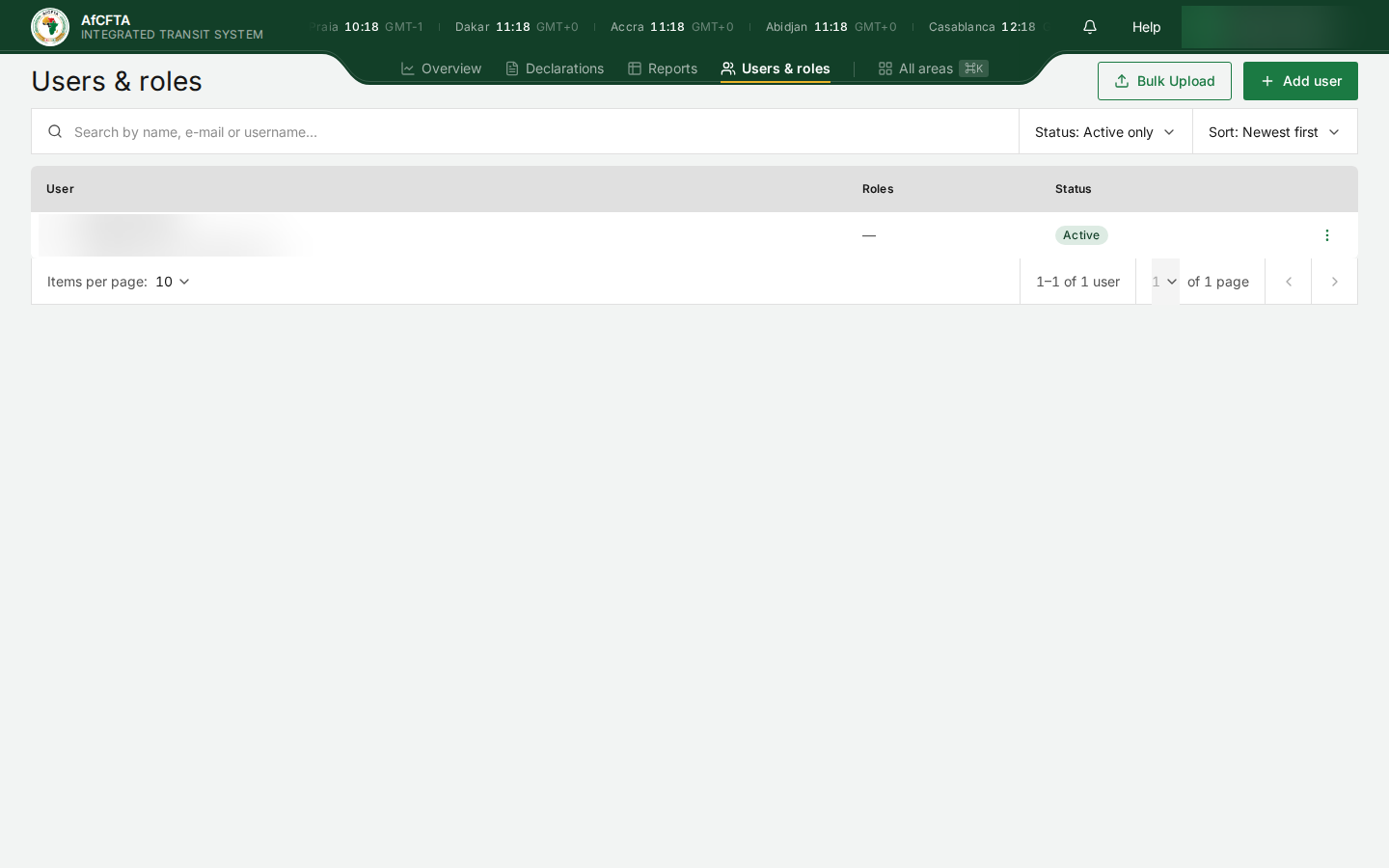 | 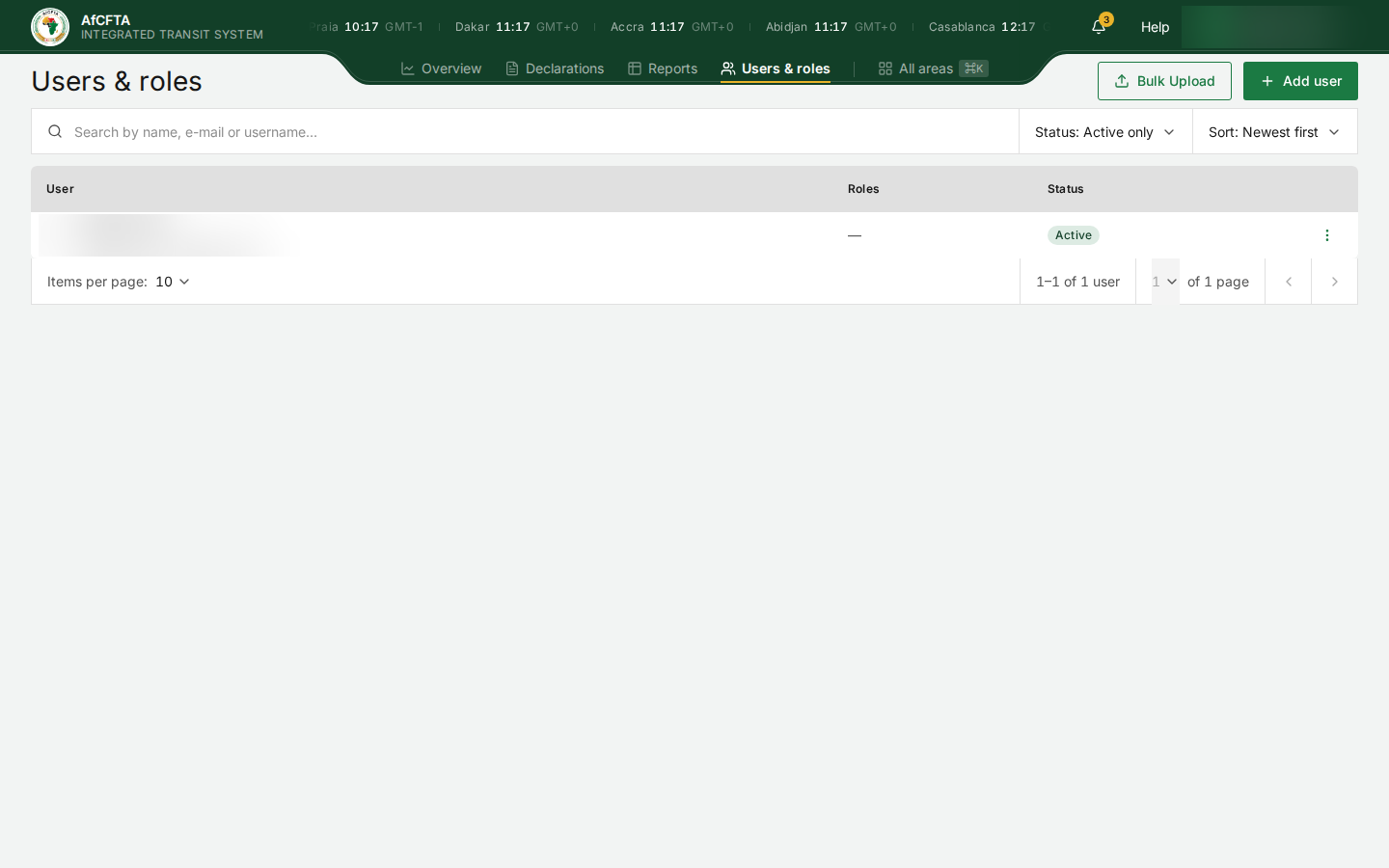 |
On the current version, a State Party or REC administrator who selects Add user, or Edit in a row's menu, gets nothing: no window, no message, no error. The permission to manage users is there; the screen waits for information that this kind of account can never load.
Until it is fixed, ask the AfCFTA Secretariat to create or change accounts in your organisation, and tell them the roles each person needs.
Before you start
- You need a role that manages users. See What each role can do.
- Have ready: the person's first and last name, their work e-mail address, the username they will sign in with, and the roles their job needs.
How to open it
- Select Users & roles in the header.
- The Users tab opens.
On the page
| On the page | What it is for |
|---|---|
| Users, Roles | Switch between people and roles. Only System admin has the Roles tab. |
| Bulk Upload | Add many people from a spreadsheet. |
| Add user | Add one person. See Add a user. |
| Search by name, e-mail or username… | Narrows the list as you type. |
| Status | Active only or Including deactivated. |
| Sort | Newest first or other orders. |
| User | Initials, name and e-mail address. |
| Roles | The roles the person holds. |
| Status | Active, or deactivated. |
| ⋮ (User actions) | Edit, and Deactivate or reactivate. You cannot deactivate yourself. |
Select a row to open the person's panel on the right.
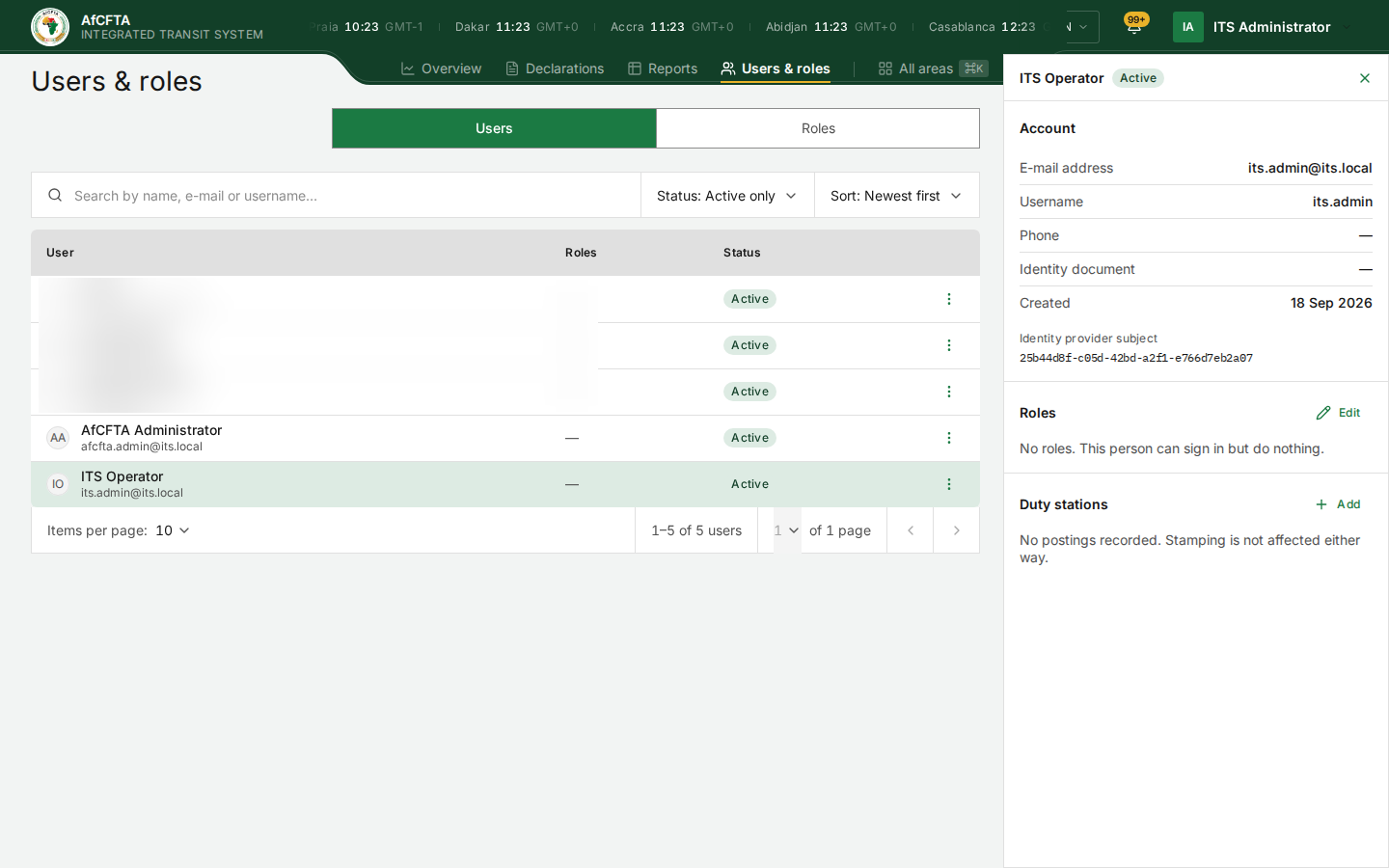
| Panel section | What it shows |
|---|---|
| Account | E-mail address, username, phone, identity document, when the account was created, and the sign-in service's identifier for the person. |
| Roles | The roles held, with Edit. |
| Duty stations | Where a customs officer is posted, with Add to record a posting. A posting is a record for your administration: stamping is not affected either way. |
On the current version, the Roles column shows — for every account and the panel says No roles. This person can sign in but do nothing., even for the operator, who holds System admin. The roles are there: the screen is not reading them. Check what a role grants on the Roles tab, and what a person can do by asking them to sign in.
Add a user
-
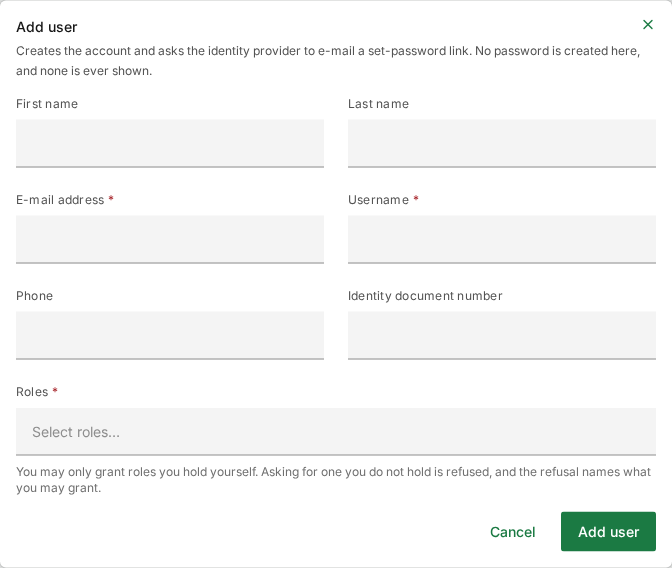
Select Add user at the top right.
-
Type the First name and Last name.
-
Type the E-mail address. The set-password e-mail goes here. It cannot be changed later.
-
Type the Username the person will sign in with. It cannot be changed later either.
-
Optionally type a Phone number and an Identity document number.
-
Select the Roles box (Select roles…) and pick one or more roles. You can only give the roles your organisation may give (see the table above). See Roles and permissions for what each grants.
-
Select Add user, or Cancel to close the window and keep nothing.
The fields
| Field | Required | What to enter |
|---|---|---|
| First name | No | Given name. |
| Last name | No | Family name. |
| E-mail address | Yes | A valid work e-mail address. Cannot be changed afterwards. |
| Username | Yes | The sign-in name. Cannot be changed afterwards. |
| Phone | No | A contact number. |
| Identity document number | No | A national ID or passport number. |
| Roles | Yes | At least one role. |
What happens next
The account is created and the sign-in service e-mails the person a link to set their password. No password is created in the portal and none is ever shown.
Under Roles, the window says "You may only grant roles you hold yourself." In fact ITS decides from your organisation which roles you may give: the Secretariat may give Organisation admin, for example, without holding it. If a role is refused, the message names the roles you may give.
Edit a user
-
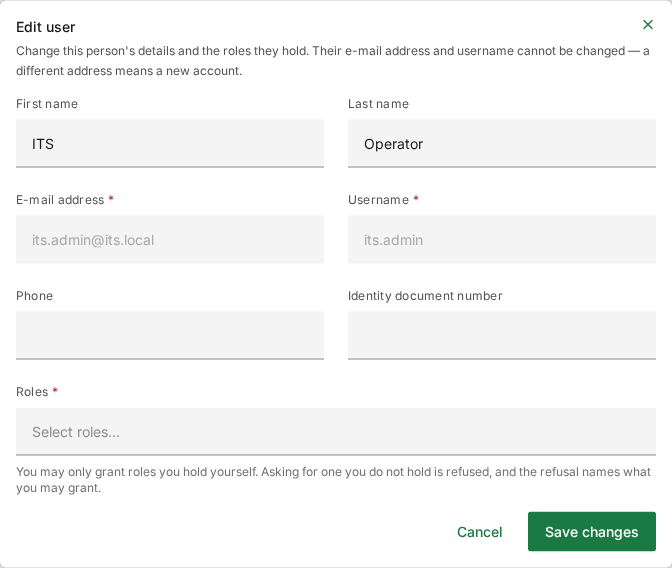
In the person's ⋮ menu, select Edit, or select Edit beside Roles in their panel.
-
Change the name, phone, identity document number or roles. The E-mail address and Username are greyed out: a different address means a new account.
-
Select Save changes, or Cancel.
Because the screen does not read the roles people already hold (see above), Roles can open empty. It is required, so you cannot save until you choose at least one. Choose every role the person should keep, not only the one you are adding.
Deactivate or reactivate a user
Use Deactivate in a person's ⋮ menu when they leave. They lose access, stay in the list as deactivated, and can be reactivated later. Set Status to Including deactivated to find them again.
ITS refuses to deactivate the last active Secretariat admin or Organisation admin of an organisation, because nobody inside it could give the role back.
Record a duty station
- Open the officer's panel by selecting their row.
- Under Duty stations, select Add.
- Choose the station and record the posting.
A posting records which border post an officer works at. It does not change what they may stamp.
Known problems
The development system's list holds test accounts, some with personal e-mail addresses. They are blurred in these screenshots. The operator account is listed as ITS Operator here, while the header calls the same account ITS Administrator.