Sign in
This page takes you from a blank browser to the ITS console.
Before you start
- The web address of the ITS portal. Your administrator gives it to you; the addresses of each environment are listed on the Environments page.
- An ITS account. You cannot create one yourself: your organisation's administrator, or the Secretariat for a new organisation, adds you and ITS e-mails you an invitation.
- Any current web browser. The portal works best at 1440 pixels wide or more.
You do not need an account to check a document or track a consignment. Those pages are public: see Public services.
The ITS front door
Open the ITS address. The first screen is the public landing page. It describes ITS, offers the two public services, and has Sign in at the top right.
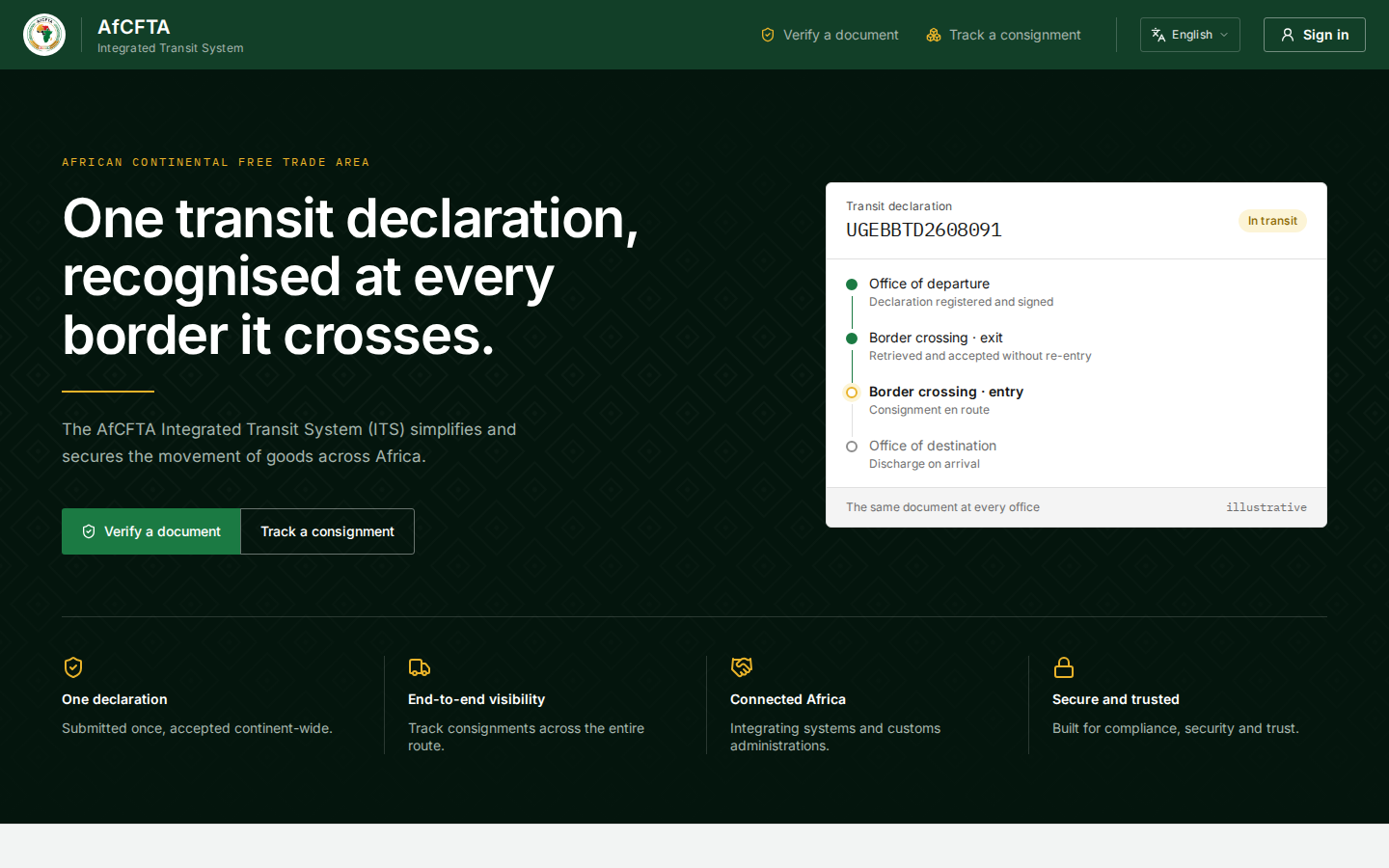
| On the page | What it is for |
|---|---|
| Verify a document | The public page that checks a printed Transit Document. No account needed |
| Track a consignment | The public page for the declarant or the consignee. No account needed |
| English (with a language icon) | The language of the portal. See Language |
| Sign in | Takes you to the ITS sign-in form |
| The sample declaration on the right | An illustration, marked illustrative. It is not a real consignment |
Further down, under Participating countries and corridors, Connected administrations and Active corridors always show a dash. They are not live counts.
Sign in
-
Select Sign in at the top right of the landing page.
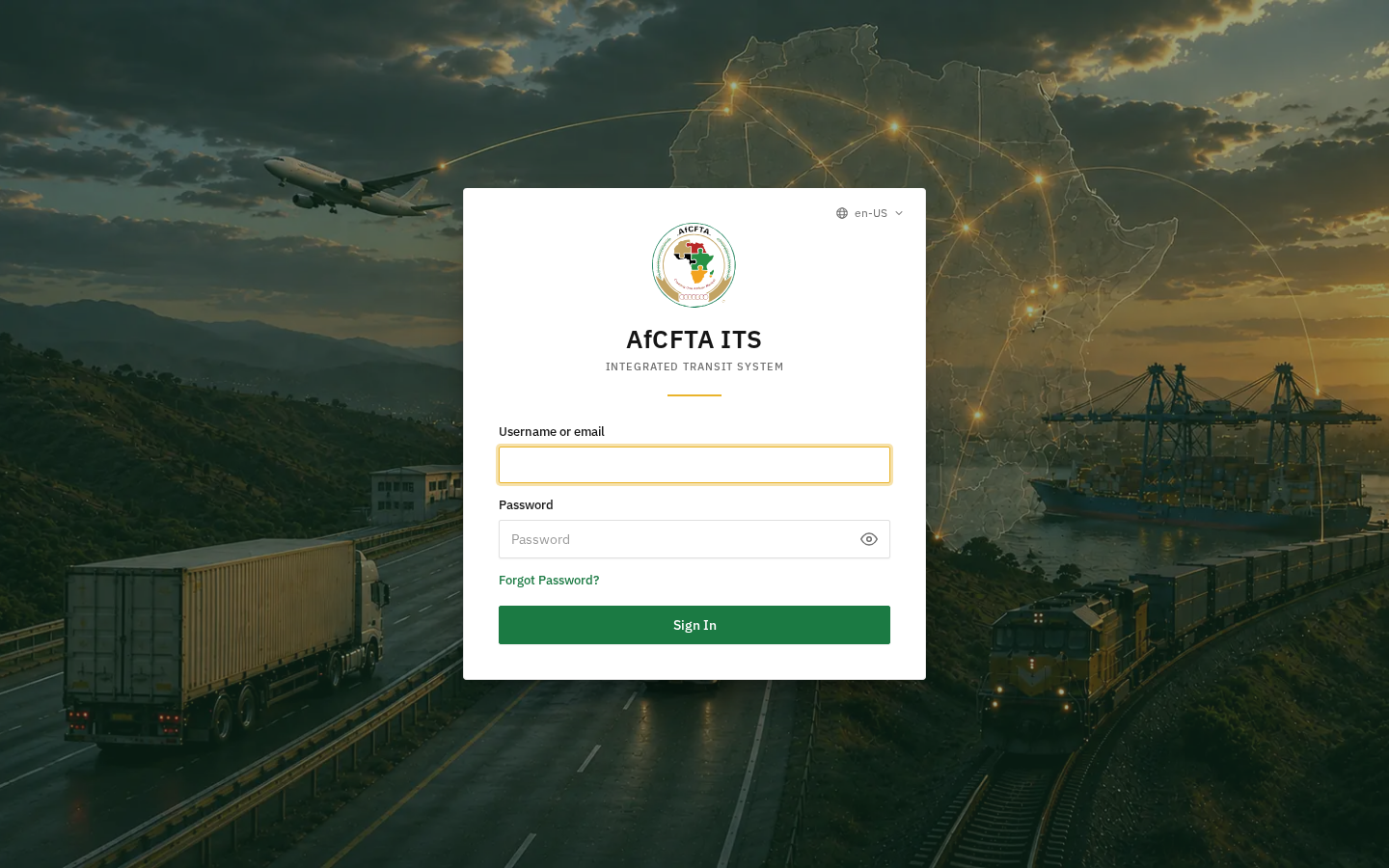
The ITS sign-in form opens. The web address changes to the sign-in service, and the page carries the AfCFTA emblem and AfCFTA ITS.
-
In Username or email, type the user name or the e-mail address your account was created with.
-
In Password, type your password. To check what you typed, select the eye at the right of the field.
-
Select Sign In.
| Field | Required | What to enter | Rules and messages |
|---|---|---|---|
| Username or email | Yes | The user name or e-mail address of your ITS account | Left empty, the form asks you to fill it in |
| Password | Yes | Your own password | Never shared. A wrong pair is refused with a message such as Invalid username or password, and repeated failures can lock the account for a while |
The form belongs to the ITS sign-in service, not to the portal itself. Its browser tab reads Sign in to its, its buttons are written in Title Case (Sign In, Forgot Password?), and its language menu at the top right shows codes such as en-US and lists some languages twice. Choose your language in the portal after signing in instead.
Where you land
After signing in you are returned to ITS. The portal decides where you start:
- The first time, you land on the System integration workspace if your account can see it, which is the case for the Secretariat and for a State Party's or REC's administrator. That workspace is about connecting a customs system and is not covered in this manual. Select Overview or Declarations in the header to get to work.
- Later, you are returned to the page you were last working on.
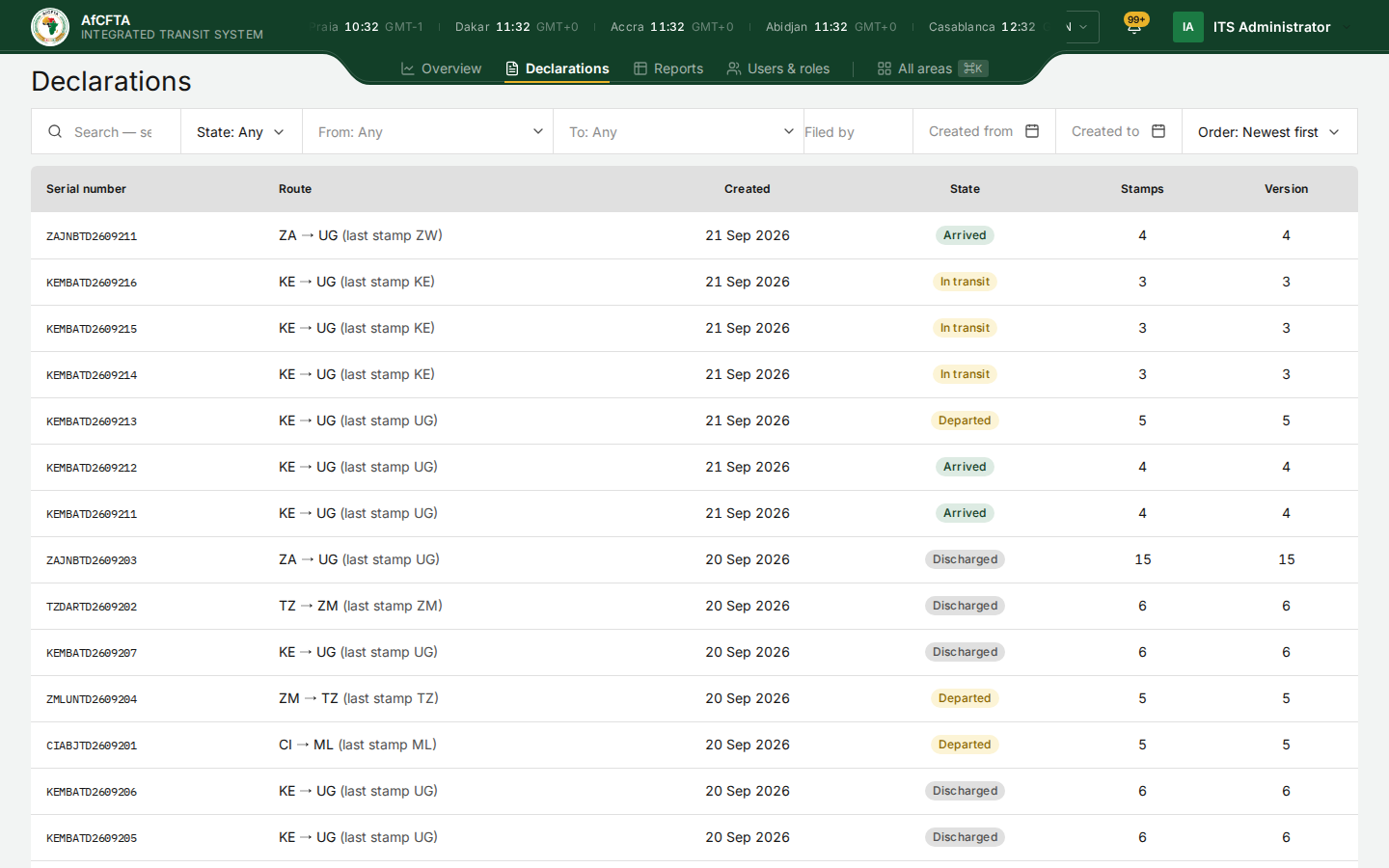
Find your way around explains everything in the header.
The portal remembers the last page you were on and returns you to it after the next sign-in. If that page was a mistyped address, you are returned to a bare Page not found, with no header, after every sign-in, even when you open the portal's home address. Type the address of a real page, such as the portal address followed by /declarations/list, to break the loop.
Your first sign-in
New accounts have no password. When you are added, ITS sends you an invitation by e-mail with a link to set one.
- Open the e-mail and follow its link. The link works once and expires.
- Choose a password on the page that opens, and confirm it.
- Sign in with your user name or e-mail address and the password you chose.
If the link has expired, use Forgot Password? on the sign-in form rather than asking for a new invitation.
If you forget your password
Administrators cannot see or set your password. Recover it yourself.
- On the sign-in form, select Forgot Password?.
- Type your user name or e-mail address and submit the form.
- Follow the link in the e-mail that arrives, choose a new password, and sign in with it.
"Not available" and missing tabs
ITS shows you only what your account may use.
- A tab or an area is missing. Your account does not include it. See What each role can do.
- A declaration says "Not available". The serial number was never issued, or the declaration is outside your organisation's scope. ITS deliberately does not say which. See Declaration details.
- A page opened by typing its address shows "Request failed" or keeps loading. Some pages do not yet say "not allowed" properly. See Troubleshooting.
If something goes wrong
| What you see | What to do |
|---|---|
| The page stays on a spinner or on grey placeholder rows | Wait a few seconds: some pages take up to fifteen seconds on first load. If nothing arrives, reload |
| A red message in a corner | A request failed. Note the wording and the reference it shows, reload, and try again; see Troubleshooting |
| You are back on the landing page without asking | Your session ended. See Your session and signing out |
| Sign in takes you straight in, without asking for a password | The sign-in service still holds your earlier session. On a shared computer, always finish with Sign out |
Related pages
- Find your way around
- Your session and signing out
- Users: how accounts are created, for administrators