The register
The register lists every State Party and REC that has been onboarded, with how far each one has got: its state, its Sandbox checks and its technical contact. The Secretariat starts here to onboard an organisation, to find the ones waiting for a decision, and to open any one of them.
Before you start
- You need Secretariat admin or System admin to see the whole register and to onboard. See What each role can do.
- A REC's Organisation admin reads a narrower register. See What a REC sees.
- Before you onboard an organisation, its participation (for a State Party) or its delegation (for a REC) must be recorded under Governance.
How to open it
-
Select All areas.
-
Under Administration, select System integration.
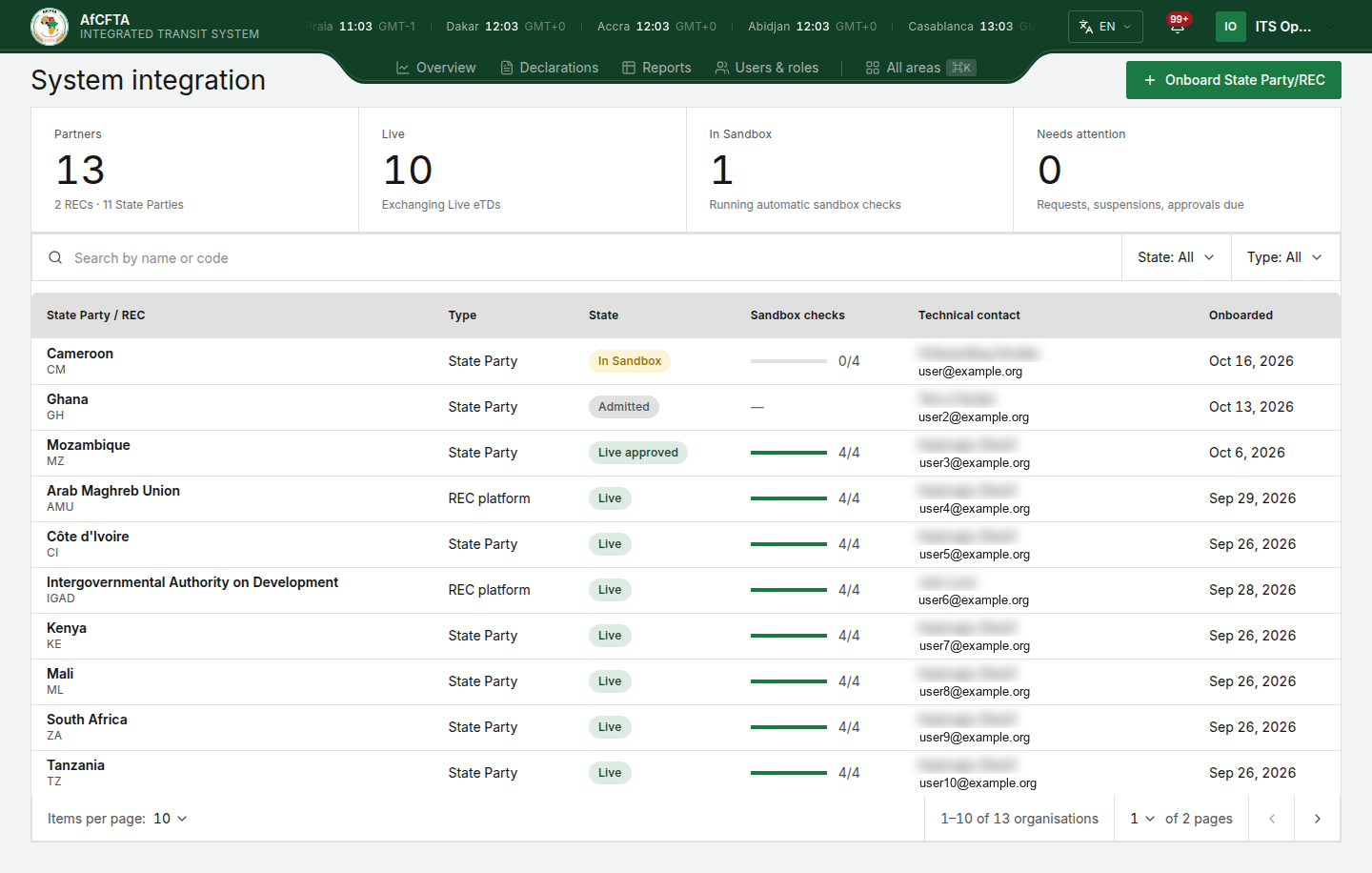
The page at a glance
The tiles
The four tiles count the whole register, not the page or the filter you are looking at.
| Tile | Counts | Caption |
|---|---|---|
| Partners | Every organisation in the register | How many are RECs and how many are State Parties |
| Live | Organisations in the state Live | Exchanging Live eTDs |
| In Sandbox | Organisations in the state In Sandbox | Running automatic sandbox checks, or how many are awaiting Live approval when any are |
| Needs attention | Requested and Suspended organisations, and Certified ones whose Live access is not approved yet. Amber when it is above zero | Requests, suspensions, approvals due |
If the tiles cannot be counted they are left out, and the table still works.
Search and filters
| Control | What it does |
|---|---|
| Search by name or code | Narrows the table as you type |
| State | All, Requested, Admitted, In Sandbox, Certified, Live, Suspended or Withdrawn. There is no Live approved choice: those organisations are found under Certified |
| Type | All, REC platforms or State Parties |
Each change takes you back to the first page. The search and the filters are kept in the page address, so you can bookmark a filtered register or send its address to a colleague. When nothing matches, the table reads No organisations match this view: "Clear the search or filters to see the full register."
The columns
| Column | What it shows |
|---|---|
| State Party / REC | The organisation's name, with its code beneath |
| Type | State Party or REC platform |
| State | The organisation's state, the same word its review screen and its own workspace show. See The states of an organisation |
| Sandbox checks | A meter and a count, from 0/4 to 4/4. It moves on its own as the organisation's system passes each check. — for an organisation that is Requested, Admitted or Withdrawn |
| Technical contact | The contact's name over the email address, or — |
| Onboarded | The day the organisation was onboarded |
The register is ordered by what needs attention, not by name: Requested first, then In Sandbox, Suspended, Admitted, Certified, Live, and Withdrawn last. Under the table, Items per page and the page arrows move through the register.
A row has no buttons of its own. Select anywhere on a row to open that organisation's review screen.
Onboard an organisation
Onboarding records an organisation as Admitted, names its two contacts and gives them access to the portal. It creates no credentials: the organisation generates those itself afterwards. For when to do this and what to check first, see Admit the organisation.
Have ready the first name, last name and work email address of the technical contact and of the administrator. They may be the same person; fill in both blocks all the same.
-
On System integration, select Onboard State Party/REC at the top right.
-
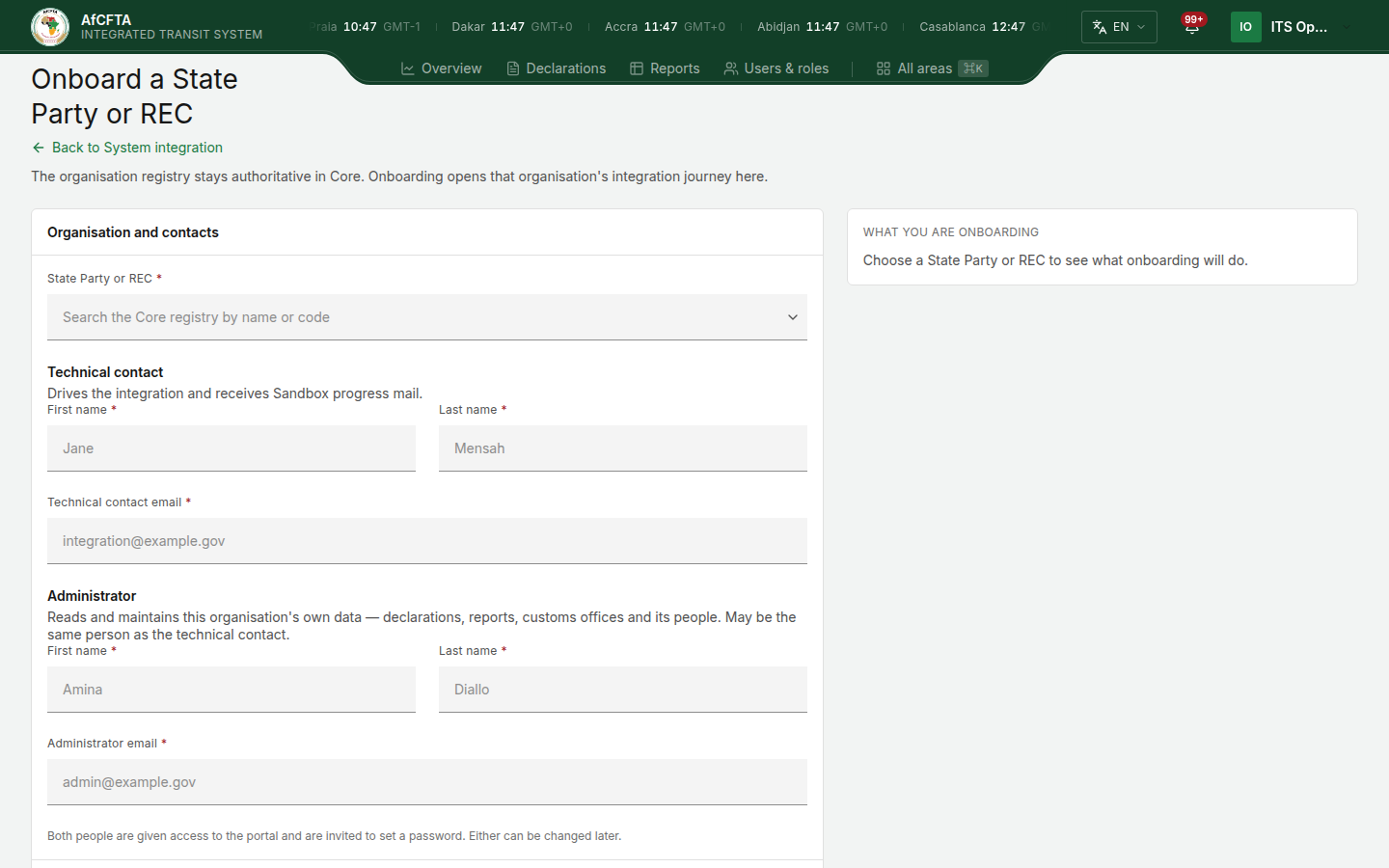
In State Party or REC, type a name or a code and choose the organisation. Only organisations that are not onboarded yet are offered.
-
Read the panel What you are onboarding on the right. For an organisation that can be onboarded it lists What onboarding does. If it reads Name cannot be onboarded yet, stop: see When the organisation cannot be onboarded.
-
Under Technical contact, type the First name, the Last name and the Technical contact email.
-
Under Administrator, type the First name, the Last name and the Administrator email.
-
Select Onboard Name. The button carries the name of the organisation you chose.
The portal opens the new organisation's review screen, where its header reads Admitted and Contacts shows the two people you entered. There is no separate confirmation message: landing on the review screen is the confirmation.
To leave without onboarding, select Cancel or Back to System integration. If you have typed anything, the portal asks Discard your changes?: "What you have entered on this form will not be saved." Select Discard changes to leave or Keep editing to stay.
The fields
| Field | Required | What to enter |
|---|---|---|
| State Party or REC | Yes | Search "by name or code". Each result shows the flag or the REC's badge, the short name with the formal name beneath, and the code. "No organisation matches that." means your search found nothing. If the field is greyed out and reads No State Parties or RECs are awaiting onboarding, every organisation is already onboarded |
| Technical contact | Yes | "Drives the integration and receives Sandbox progress mail." First name, Last name, Technical contact email |
| Administrator | Yes | "Reads and maintains this organisation's own data — declarations, reports, customs offices and its people. May be the same person as the technical contact." First name, Last name, Administrator email |
"Both people are given access to the portal and are invited to set a password. Either can be changed later." Changing one afterwards is on Review an organisation.
What onboarding does
The panel on the right lists it for the organisation you chose:
- "Records Name as Admitted"
- "Gives the technical contact access to this portal, and emails them"
- "Makes Name eligible to request machine credentials after admission"
- It does not issue credentials: "Issues no credentials — Name requests those itself, after admission"
When the organisation cannot be onboarded
If the organisation has no arrangement recorded under Governance, the panel reads Name cannot be onboarded yet and the Onboard button is greyed out. The panel gives the reason, for example "No submission arrangement is on file for Name. Record one under Governance, then onboard it."
- Open Governance.
- Record the participation of the State Party, or the delegation of the REC. A record whose start date is still in the future is enough.
- Come back to Onboard State Party/REC and choose the organisation again.
What the form refuses
| Message | Meaning |
|---|---|
| "Choose a State Party or REC, and give both the technical contact and the administrator a first name, a last name and a valid e-mail address." | Something is missing. The form gives this one message whichever field it is: check all seven |
| "This organisation has no arrangement on file. Record its participation or delegation before admitting it." | ITS refused because nothing is recorded under Governance for it |
| Another message in red under the fields | ITS refused the request and says why. What you typed is kept |
If you are not sure whether an interrupted submission went through, search the register for the organisation before trying again.
What a REC sees
A REC's Organisation admin lands on the REC's own workspace. When the REC files for at least one onboarded member State, the link Organisations you file for above the workspace header opens the register.
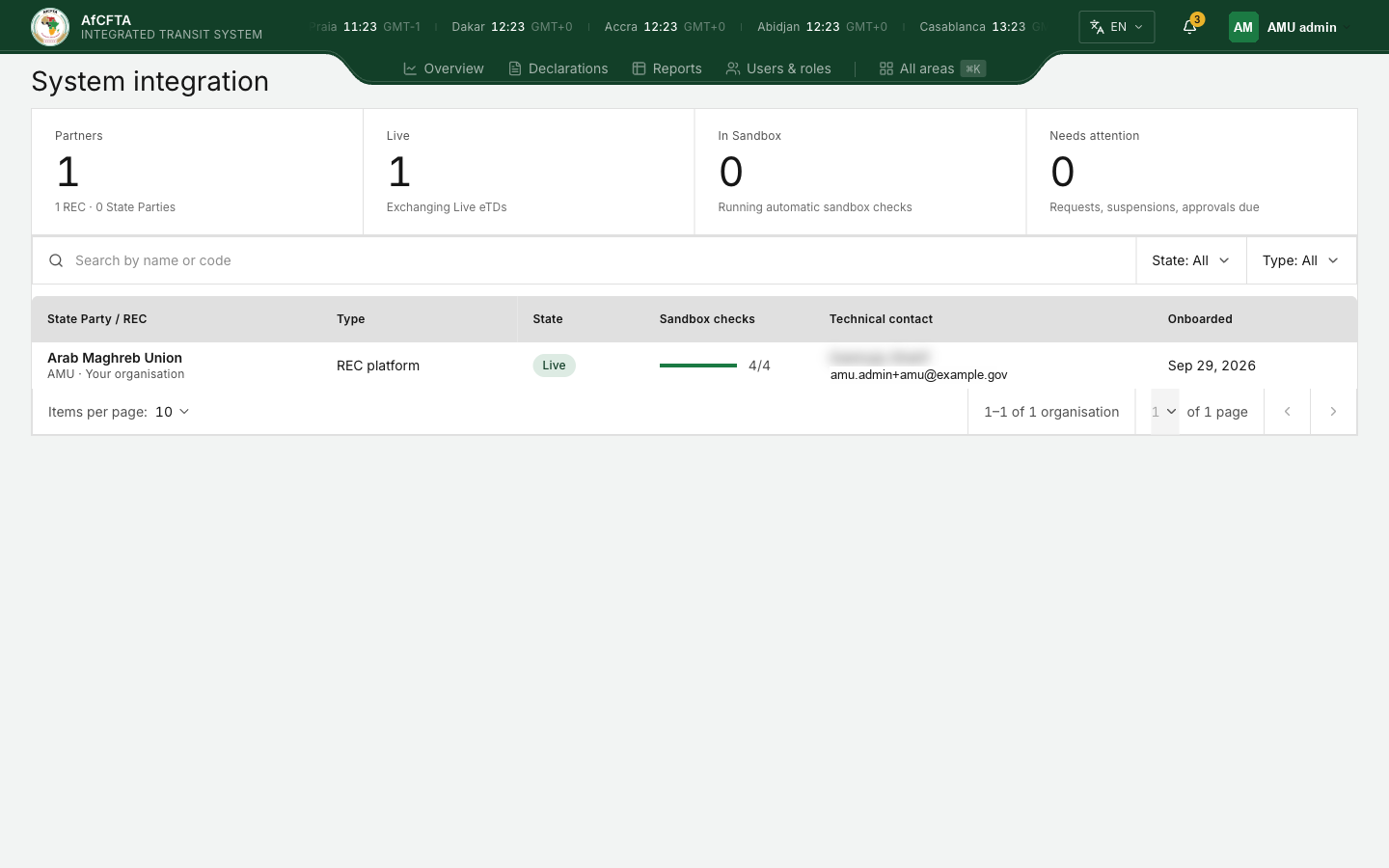
- It lists only the REC itself and the State Parties it files for. The tiles count only those rows.
- The REC's own row is marked · Your organisation after its code, and opens the REC's workspace.
- A member State's row opens that member's review screen, without the Secretariat's buttons.
- There is no Onboard State Party/REC button.
A State Party's administrator has no such link: its register would hold only itself.
Related pages
- System integration
- Review an organisation
- Admit the organisation and Activate the accounts: the process around this form, and the emails the two contacts receive.
- Governance