Review an organisation
The review screen gathers everything the Secretariat decides about one organisation: what is waiting for approval, the evidence that approval rests on, how the organisation is set up for Live, who its contacts are, and whether its systems may call ITS at all.
Before you start
- You need Secretariat admin or System admin to act on this screen. See What each role can do.
- A REC's Organisation admin can open the screen for a member State it files for, and read it. See What a REC sees.
- For suspending or withdrawing, have the reason ready. ITS will not accept either without one.
How to open it
-
Open System integration.
-
Find the organisation in the register, using Search by name or code if needed.
-
Select its row.
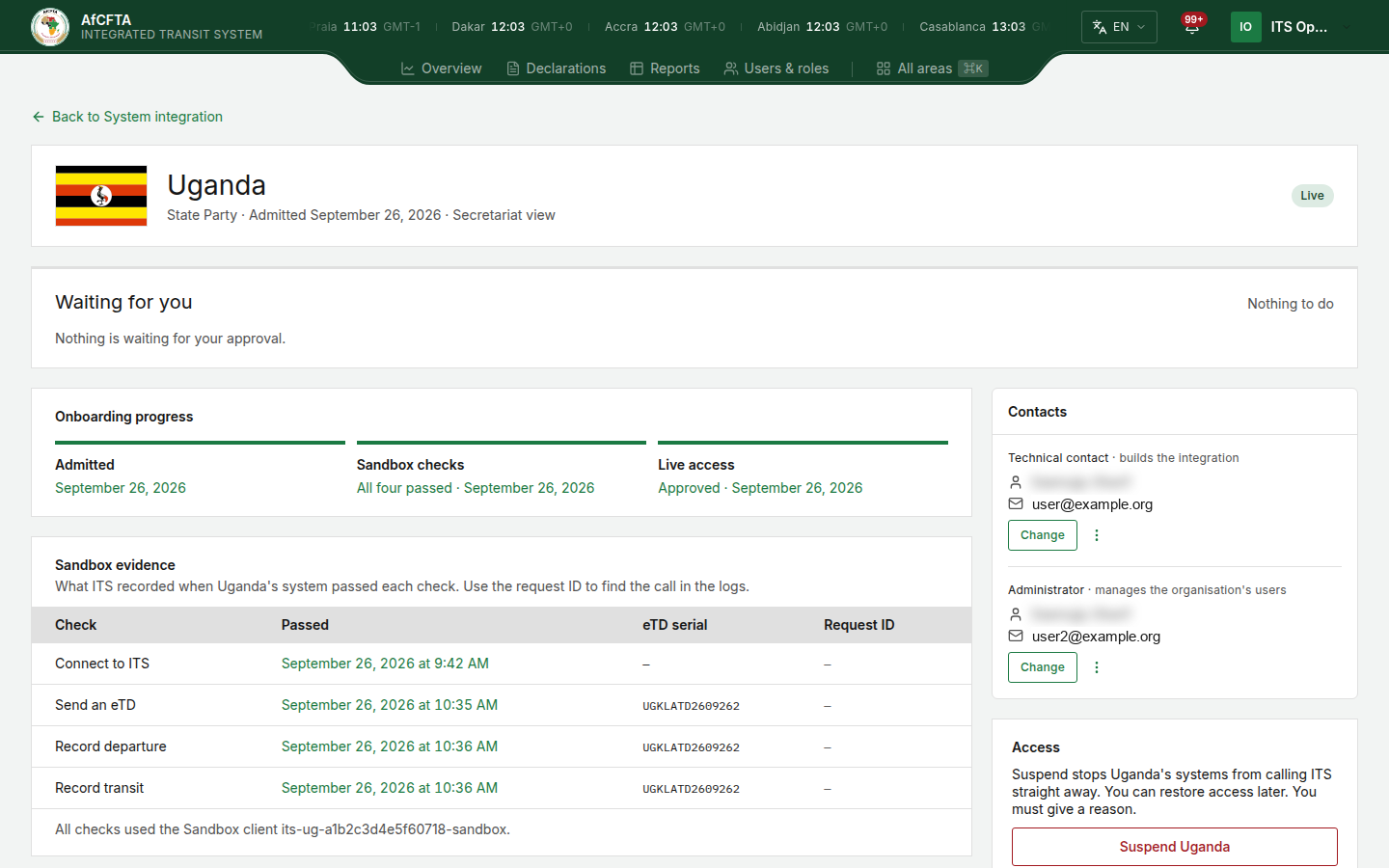
Back to System integration, at the top, returns to the register.
The screen at a glance
| Section | What it shows |
|---|---|
| Header | The flag or the REC's badge, the name, State Party or Regional economic community, Admitted with the date, Secretariat view, and the state. See The states of an organisation |
| Waiting for you | Every decision this organisation is waiting for, with a count such as 2 items, or Nothing to do. Its top edge is amber when something waits |
| Onboarding progress | Three stages: Admitted, Sandbox checks and Live access |
| Sandbox evidence | What ITS recorded when the organisation's system passed each check |
| Live setup | Which endpoint receives the organisation's announcements, once Live access is approved |
| Receiving endpoints | The full history of the organisation's endpoints. See Approve receiving endpoints |
| Contacts | The technical contact and the administrator |
| Access | Suspend, Restore access and Withdraw |
Waiting for you
| Item | It appears when | Button |
|---|---|---|
| Approve Live access | The organisation has passed all four Sandbox checks and Live access is not approved yet | Approve Live access |
| Approve a new receiving endpoint | The organisation has declared an endpoint. One item per endpoint | Approve endpoint |
With nothing waiting, the section reads "Name is still running its Sandbox checks. You will be asked to approve Live access when all four have passed." or, later, "Nothing is waiting for your approval."
Onboarding progress
| Stage | What it reads |
|---|---|
| Admitted | The date of admission |
| Sandbox checks | 2 of 4 passed, with the real count, then All four passed and the date |
| Live access | After the four checks, then Waiting for your approval, then Approved and the date |
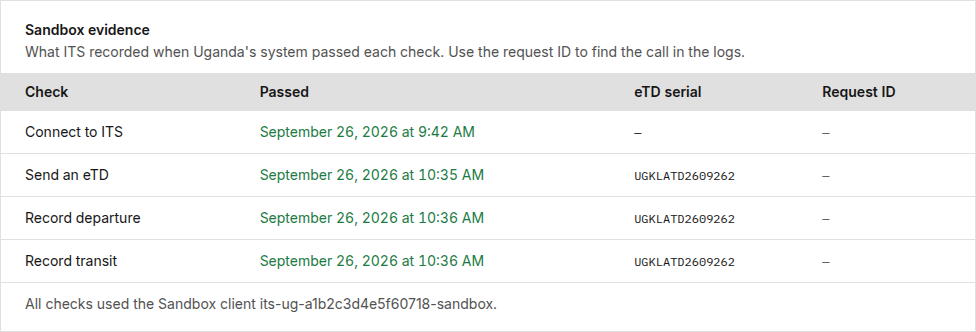
Sandbox evidence
| Column | What it shows |
|---|---|
| Check | Connect to ITS, Send an eTD, Record departure, Record transit. They are steps 3 to 6 of the organisation's own guide |
| Passed | The date and time the check passed, or Not yet |
| eTD serial | The Sandbox declaration the check was passed with, where there is one |
| Request ID | The identifier of the request that passed the check, or a dash where none was recorded. "Use the request ID to find the call in the logs." |
Under the table, "All checks used the Sandbox client client ID." names the credential the requests came from. If the checks were passed with different clients, each row names its own instead.
The table asks ITS again about every ten seconds until all four checks have passed, and each time you come back to its browser tab, so you can watch an organisation pass its checks without reloading.
Live setup
Before Live access is approved, the section reads "Name cannot use Live until you approve Live access. Its receiving endpoint appears here after that."
After approval it shows the receiving endpoint, per member State for a REC:
| Label | What it reads |
|---|---|
| Receiving endpoint | Approved with the address, Approved · a new one is waiting, Waiting for your approval, or None yet |
Approve Live access
Approving Live access lets the organisation create Live credentials and send real declarations.
- Open the organisation. Its header reads Certified and Waiting for you holds Approve Live access.
- Read Sandbox evidence: all four rows should carry a date and time.
- Select Approve Live access.
There is no confirmation window. The approval is recorded the moment you select the button. To stop Live access afterwards you suspend the organisation; an approval cannot be taken back on its own.
The item leaves Waiting for you, the header changes to Live approved, and Live access under Onboarding progress reads Approved with today's date. On the organisation's side, the Live button of its workspace unlocks.
The organisation reads Live approved on every screen until it generates its first Live credentials, and Live from then on.
If ITS refuses, its message appears in red under the button. "Production credentials require certification first." means the organisation has not passed all four checks.
Change a contact
Each organisation has two contacts: the Technical contact, who "builds the integration", and the Administrator, who "manages the organisation's users". One person can be both.
- In Contacts, select Change beside the contact. It reads Set when nobody is recorded, and the row shows Not set.
- In Set the technical contact or Set the administrator, type the First name, the Last name and the Email.
- Select Save, or Cancel.
The card shows the new person. The window says what happens to both people: the new one is "invited to set a password if they do not already have an account", and "The previous contact loses that role and keeps any other."
| Message under a field | Meaning |
|---|---|
| "A first name is required" | First name is empty |
| "A last name is required" | Last name is empty |
| "A valid e-mail address is required" | Email is empty or not an email address |
Resend an invitation or repair a sign-in
Use these when a contact says no email arrived or cannot sign in. Check first that the name and the address on the card are right; if they are not, change the contact instead. The process around these emails is in Activate the accounts.
- In Contacts, open the ⋮ menu beside the contact (More actions for the technical contact or More actions for the administrator).
- Select one of:
- Resend invitation email: sends that contact a new sign-in invitation. It is not offered for a contact with no email address.
- Repair sign-in for both contacts: checks both contacts' accounts, membership and roles again against what is recorded, and puts right what differs. It always covers both contacts, whichever menu you opened it from, and it sends no email.
| Message on the card | Meaning |
|---|---|
| Invitation sent: "A new sign-in invitation was emailed to address." | The email was sent |
| Sign-in repaired: "Both contacts' accounts, membership and roles were re-checked against what is recorded. No invitation email was sent." | The repair ran. If the person still needs a link, resend the invitation as well |
| The action failed, with a code and a message | ITS refused. Read the message |
Neither action is offered for an organisation that is Requested or Withdrawn.
Suspend an organisation
Suspending "stops Name's systems from calling ITS straight away. You can restore access later."
-
In Access, select Suspend Name.
-
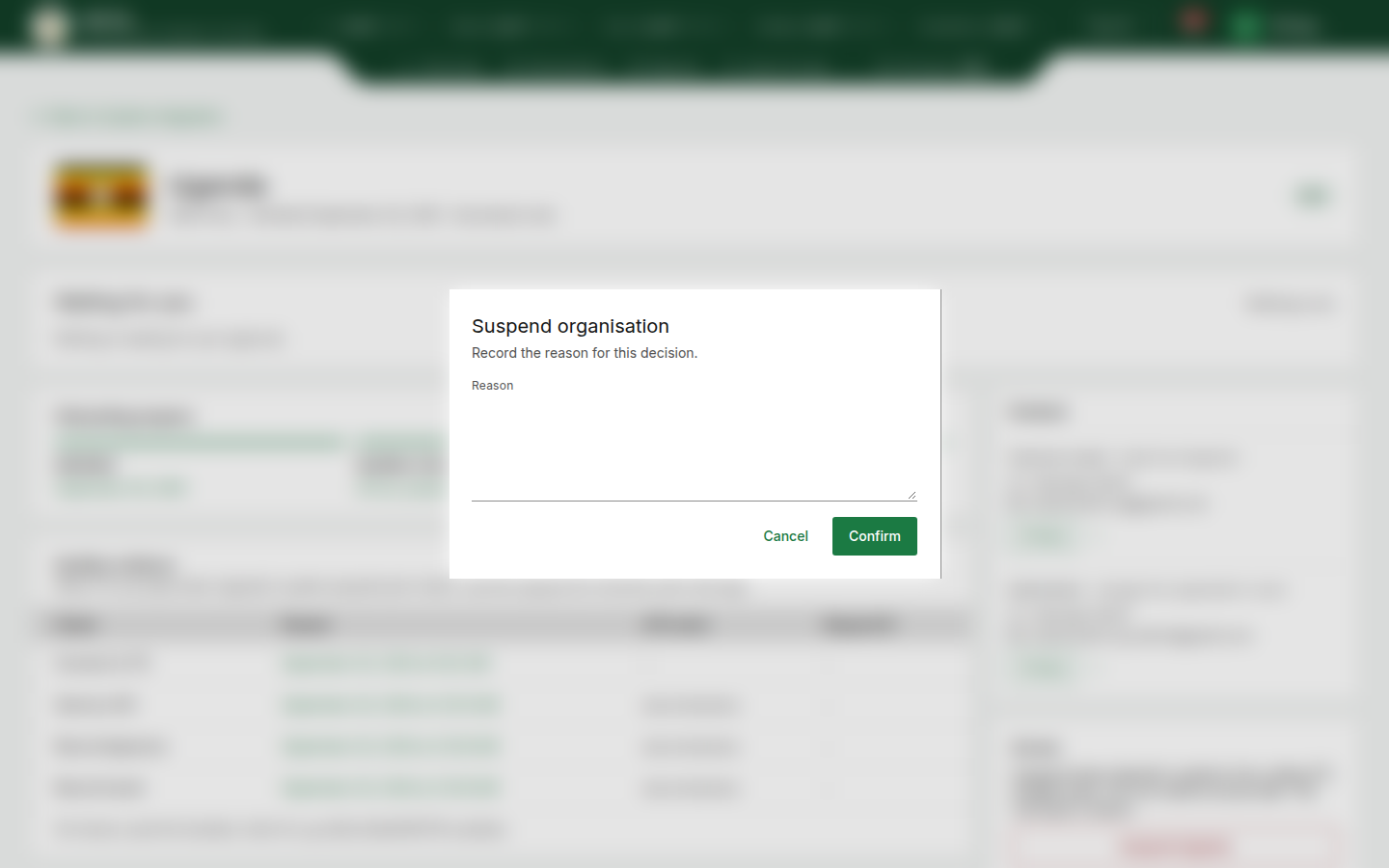
In Suspend organisation, type the Reason. The organisation reads this reason on its own workspace, so write it for them.
-
Select Confirm, or Cancel to change nothing.
The header changes to Suspended and a red alert, Access is suspended, shows the reason on this screen and on the organisation's workspace. The Access card now offers Restore access.
| Message in the window | Meaning |
|---|---|
| "A reason is required." | The Reason box is empty |
| "The organisation cannot move to the requested onboarding state from its current state." | ITS suspends only an organisation that is In Sandbox, Certified, Live approved or Live. The card offers Suspend for an Admitted organisation too, and this is the answer you get: an admitted organisation has no credentials to stop yet |
Restore access
- In Access, read "Restore lets Name's systems call ITS again."
- Select Restore access.
There is no confirmation window: access is restored the moment you select the button. The organisation returns to the state it had before it was suspended, the red alert goes, and the card offers Suspend again. If ITS refuses, its message appears in red under the button.
Withdraw an organisation
Withdrawing "ends Name's participation. The record becomes read-only."
A withdrawn organisation cannot be restored, suspended or approved, and its contacts can no longer be sent invitations. Suspend instead if the stop may be temporary.
- In Access, select Withdraw Name.
- In Withdraw organisation, type the Reason.
- Select Confirm, or Cancel to change nothing.
The header changes to Withdrawn, a red alert reads Organisation withdrawn, and the Access card reads only "Name has been withdrawn. The record is read-only." The organisation stays in the register, last in the order, with — under Sandbox checks.
What a REC sees on a member's review screen
A REC's Organisation admin who opens a member State from its register reads the same screen, with the same headings, including Secretariat view and Waiting for you. The difference is in what it can do:
- The items under Waiting for you are listed without their buttons.
- Contacts shows the two contacts, without Change and without the ⋮ menu.
- There is no Access card.
- A waiting endpoint reads "Waiting for the Secretariat to approve it."
An organisation the REC does not file for cannot be opened: the screen reads Could not load this screen with "The organisation onboarding record was not found."
Related pages
- The register
- Approve receiving endpoints
- Your workspace: what the organisation sees while you decide.
- Move to Live