Admit the organisation
Who does this: the onboarding officer at the AfCFTA Secretariat.
Admission does three things. It creates the organisation in ITS and marks it ADMITTED. It records two people against it, an administrator and a technical contact. And it starts the handover that lets those two people sign in.
It does not produce machine credentials or Live access. Those come later, and they are deliberately separate: an admitted organisation that has not proved anything yet cannot reach real trade.
Create the organisation
Before you start, a State Party needs a participation record and a REC needs a delegation record under Governance, and you need the names and work email addresses of the two contacts. The record has to be on file; its start date may still be in the future, so an organisation can be connected ahead of the day its authority begins.
- Open System integration and choose Onboard State Party/REC.
- In State Party or REC, search the registry by name or code and select the organisation. Only organisations that are not onboarded yet are offered. The panel on the right then says what onboarding this particular organisation will do.
- Fill in the technical contact and the administrator. Both need a first name, a last name and a work email address.
- Review the whole form, then select Onboard name. The button carries the name of the organisation you chose.
If the panel reads Name cannot be onboarded yet, the button is greyed out: nothing is on file for the organisation under Governance. Record it first, then come back to the form.
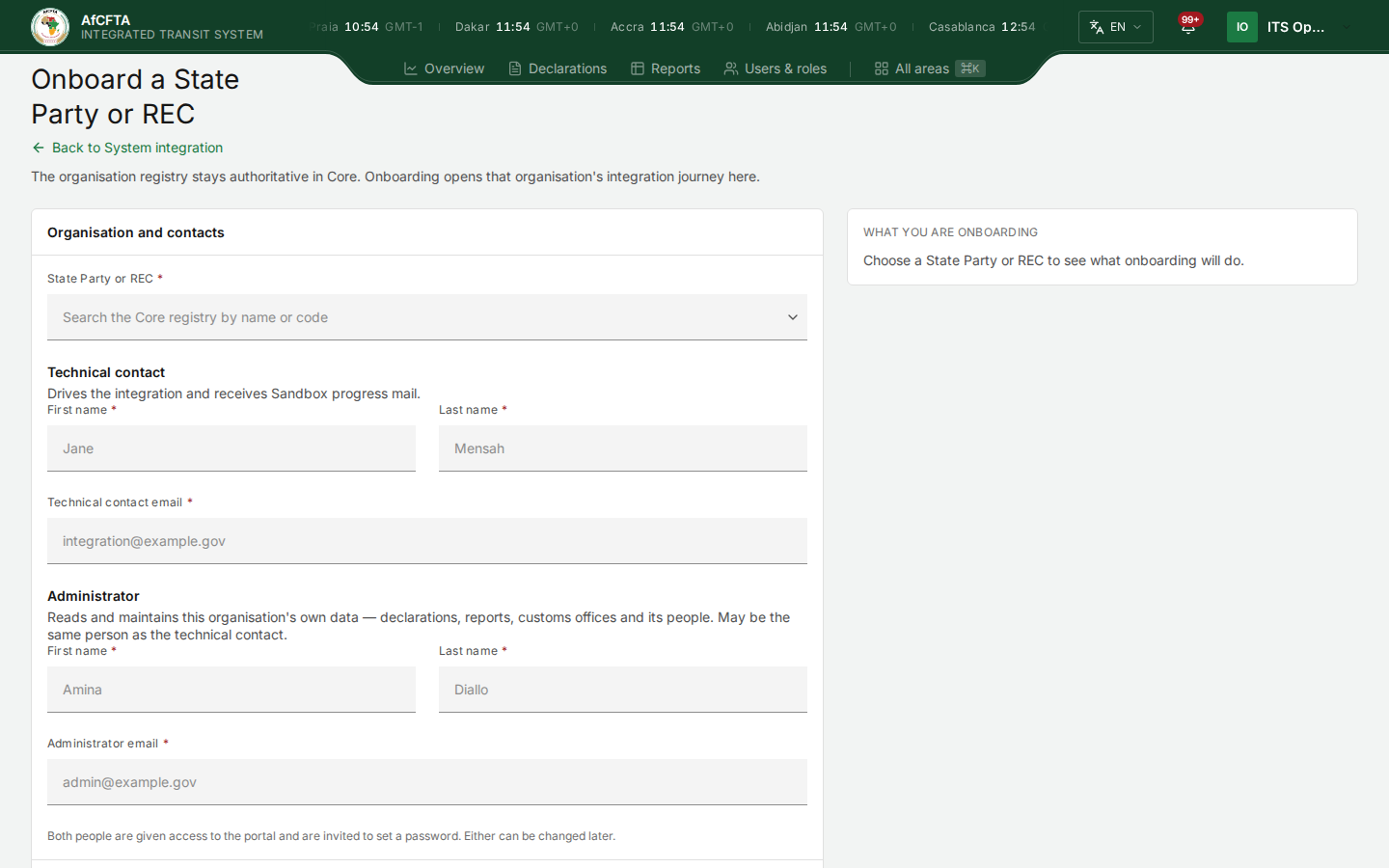
The form says what each role does beneath its heading: the technical contact drives the integration and is written to about Sandbox progress; the administrator reads and maintains the organisation's own data. The greyed values are the form's own placeholders.
It worked when the portal opens the organisation's review screen: its header reads Admitted and Contacts shows the two people you entered. There is no separate confirmation message. In the register on System integration the organisation is listed with the same state, Admitted, and its technical contact.
If the submission is interrupted and you never see a result, search the register before submitting the form again. Submitting twice because the first response was lost is how duplicate records get made.
Name the administrator and the technical contact
The two roles do different jobs, and the form says so beneath each heading: the technical contact drives the integration and is written to about Sandbox progress; the administrator reads and maintains the organisation's own data.
Fill in both roles explicitly, even when one person holds both. Recording the same person twice is correct and supported. Leaving a role blank because "it is the same person" is not, and it leaves a gap that surfaces much later as a missing email nobody can explain.
Use work addresses that will still exist in a year. They receive account and onboarding messages.
If a role is missing or was given to the wrong person, stop before the accounts are activated and repair the assignment: on the organisation's review screen, Change beside the contact under Contacts records another person. Do not work around it by sharing one account: every action in ITS is recorded against the person who took it.
Check the result without relying on email
The most common false alarm in onboarding is a partner reporting that admission failed when only the email was slow.
- Confirm the organisation is listed in the register on System integration and shows Admitted.
- Open its row and confirm under Contacts that both contacts are recorded against it.
- When the partner signs in, confirm they see their own organisation and only the parts of ITS their role allows.
Those three things are the proof.
A missing email does not mean admission failed. The record is the evidence; the mailbox is a separate question with a separate fix. If the record is right and the message has not arrived, go to Activate the accounts — do not admit the organisation again.
Watching progress afterwards
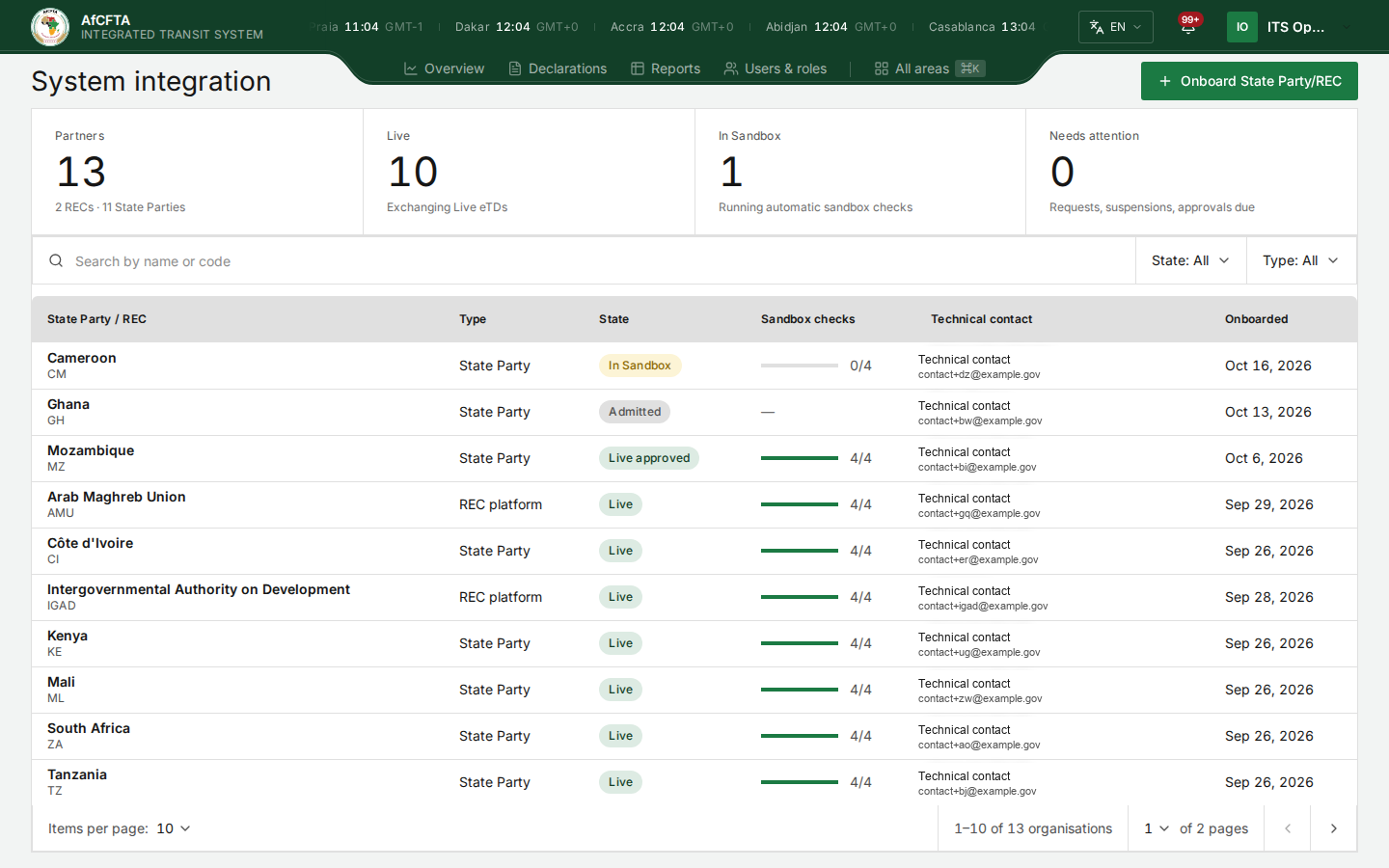
The register carries a Sandbox checks column. It shows — until the organisation has generated its Sandbox credential, then counts from 0/4 to 4/4 as the four checks in Pass the four checks pass, and it moves on its own as requests arrive. Nobody updates it by hand. The Needs attention tile counts the organisations waiting for a decision, among them those that have passed all four checks and are waiting for Live approval.
Select a row to open the organisation's review screen, where Sandbox evidence shows the request behind each check and Waiting for you lists what is yours to approve. The register is described in The register and the review screen in Review an organisation.