The transit document
The Transit document tab shows the AfCFTA Transit Document for a declaration: the printed form, drawn by ITS from the declaration's latest signed version. It is the same document the declarant and the officers at every border hold.
Before you start
- Your account must be able to read declarations, and the declaration must be in your scope.
- To see the document in the page, your browser needs a built-in PDF viewer. Every common desktop browser has one.
Open it
- Open the declaration. See Declaration details.
- Select the Transit document tab.
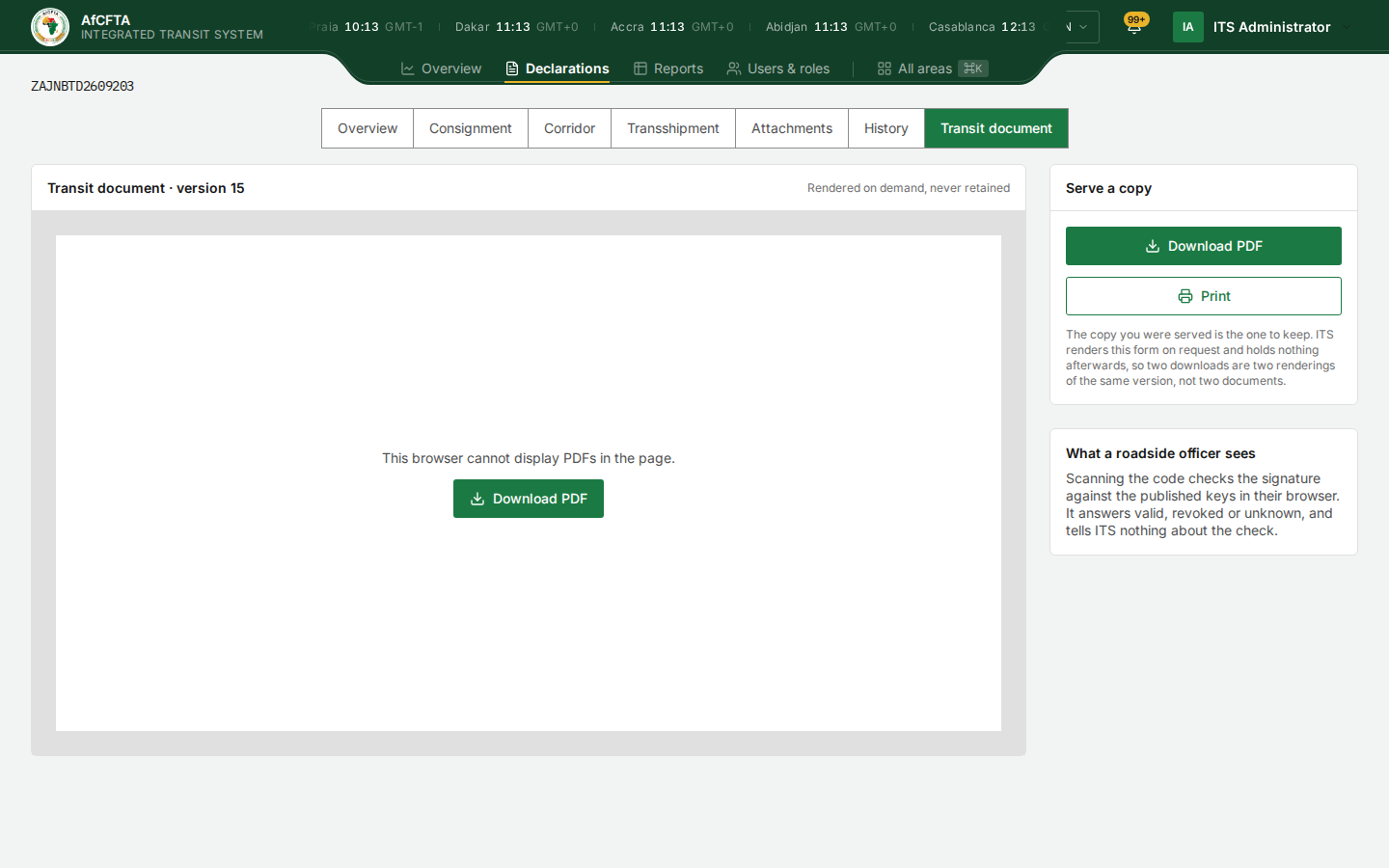
The left of the tab shows the document, both leaflets, headed Transit document · version 15: the declarant keeps leaflet I, and the customs office keeps leaflet II.
If your browser cannot show PDFs, the area says This browser cannot display PDFs in the page. and offers Download PDF instead, as in the picture above.
Serve a copy
The Serve a copy card holds the two things you can do with the document.
| Button | What it does |
|---|---|
| Download PDF | Saves the copy already shown as a PDF file. It does not ask ITS again |
| Asks ITS for the document again and opens it in a new browser tab, ready to send to a printer. The button reads Rendering… while it waits |
Download the document
- Select Download PDF.
The file is saved with the name ITS gives it, which includes the serial number.
Print the document
- Select Print.
- In the new tab that opens, use your browser's print command.
If ITS cannot draw the document, a message says Could not print the declaration. The declaration itself is not affected; try again in a moment.
What serving a copy records
Downloading or printing changes nothing. It adds no version, no stamp is written, and nobody on the corridor is told. The card says why: ITS renders this form on request and holds nothing afterwards, so two downloads are two renderings of the same version, not two documents. ITS keeps the declaration, not printouts, so the copy you were served is the one to keep.
What a roadside officer sees
The second card reminds you what happens when the QR code on the printed document is scanned: the Verify page checks the signature against the keys ITS publishes, in the officer's own browser, and answers genuine, cancelled or no match. See Verify a document.
An earlier version
This tab always shows the latest version. To get the document as it stood at an earlier version:
- Select the History tab.
- In Versions, find the version you need.
- Select PDF in its row.
The Transit Document as it stood at that version opens in a new browser tab, where you can save or print it.
When the document is not available
| What you see | What it means | What to do |
|---|---|---|
| Grey placeholders | The document is being drawn | Wait a moment |
| Not available / No declaration with this serial number is visible to your administration. | The declaration does not exist or is outside your scope | Check the serial number |
| Not available with another message | ITS could not draw the document, although the declaration is sound | Reload the tab; if it persists, report it with the message |
Related pages
- Declaration details
- Verify a document
- Attachments and documents, for developers