Import and export
Two buttons at the top of Customs offices work with files:
- Bulk Upload adds many offices at once from a spreadsheet: your whole network, prepared offline.
- Export downloads the offices you are looking at, as Excel or CSV.
Before you start
- Bulk Upload needs the right to import offices (Organisation admin, Secretariat admin or System admin). Export needs the right to export them. See What each role can do.
- You can only import offices for the countries you maintain. The template already lists them.
Bulk Upload
-
On Customs offices, select Bulk Upload.
-
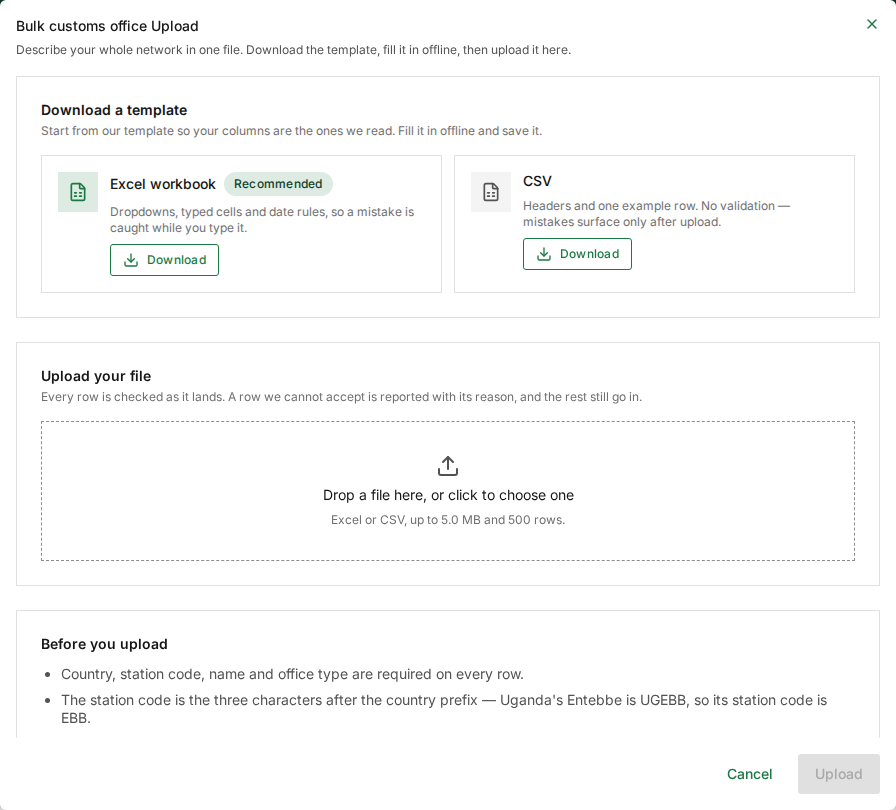
Under Download a template, choose one:
Template What it gives you Excel workbook (Recommended) Drop-down lists, typed cells and date rules, so a mistake is caught while you type it. CSV The column headings and one example row. Nothing is checked until you upload. -
Fill the template in offline, one office per row.
-
Back in the window, drop the file onto Drop a file here, or click to choose one, or select it and choose the file. Excel or CSV, up to 5.0 MB and 500 rows.
-
Select Upload. The button stays greyed out until a file is chosen. To leave without importing anything, select Cancel.
Every row is checked as it arrives. A row ITS cannot accept is reported with its reason, and the other rows still go in.
The rules for each row
The window lists them under Before you upload:
- Country, station code, name and office type are required on every row.
- The station code is the three characters after the country code:
Uganda's Entebbe is
UGEBB, so its station code isEBB. - Office type decides where a transit may cross a border, so record it accurately. Only an office marked INLAND refuses an entry or exit stamp.
- Leave the neighbouring country empty for a seaport, an airport or any inland office. A border post only faces a country across a land or river frontier.
- You can only add offices for the administrations you maintain.
- An office already in the register is reported, not overwritten. To correct one, edit it on the screen, or export, edit and upload the exported file.
Because an existing office is never overwritten by a new row, the way to fix many offices is: Export them, correct the file, and upload the exported file. Do not retype them into a fresh template.
The window is titled Bulk customs office Upload, and its example code is
Ugandan (UGEBB) whoever you are.
Export
-
Set the filters on Customs offices to what you want in the file: for example Scope: My administration and Type: Border.
-
Select Export.
-
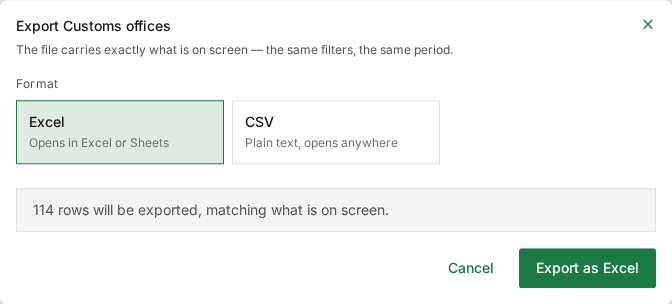
Choose Excel (opens in Excel or Sheets) or CSV (plain text, opens anywhere).
-
Check the line that says how many rows will be exported. The file carries exactly what is on screen: the same filters.
-
Select Export as Excel (or Export as CSV) to download the file, or Cancel.
Export follows the filters, so My administration exports different offices for each kind of organisation: every office in Africa for the Secretariat, your own country's for a State Party, your delegated members' for a REC. Choose All of Africa to export the whole register, whoever you are.