Add or edit an office
Add an office when your administration opens a new post, or when a station your officers stamp at is not in the register yet. Edit one to set its type, fix its name, record the country it faces, or end its use on a date.
Before you start
- You need Organisation admin, Secretariat admin or System admin. See What each role can do.
- You can only add and edit offices of the countries you maintain: your own country for a State Party, the delegated members for a REC, every country for the Secretariat. See What "My administration" means.
- Have ready: the office code, its name, whether it is a border post or an inland office, and for a border post, the country it faces.
Add an office
-
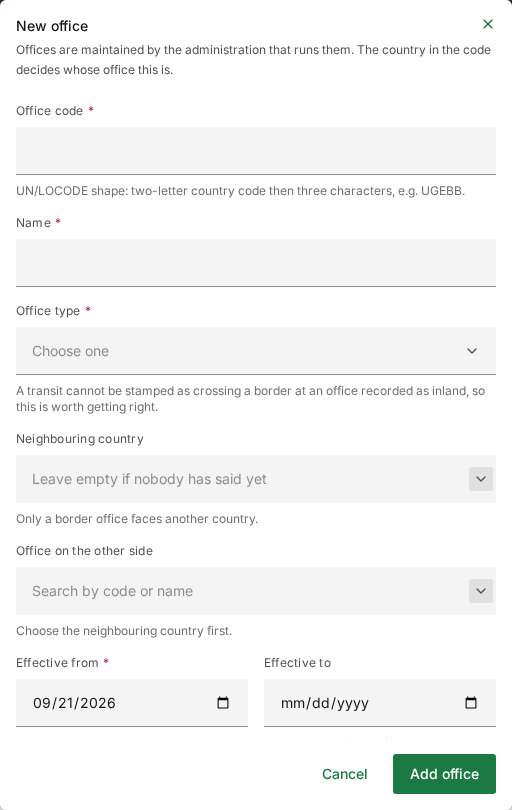
On Customs offices, select New office at the top right.
-
Type the Office code: the two-letter country code followed by three characters, for example
TNB6Q. The country in the code decides whose office this is, so it must be a country you maintain. -
Type the Name as your officers know it.
-
Choose the Office type:
- Border — goods enter or leave the customs territory here
- Inland — a dry port or interior office
-
For a border post, choose the Neighbouring country. Only the countries yours shares a land or river frontier with are offered. Leave it empty for a seaport or an airport.
-
Optionally, choose the Office on the other side: the neighbouring administration's post across the border. It is offered only once that administration has registered its own post. Most people leave it empty.
-
Check Effective from (today by default) and leave Effective to empty for an office still in use.
-
Select Add office to save it, or Cancel to close the window and keep nothing.
A green Office added message confirms it.
Edit an office
-
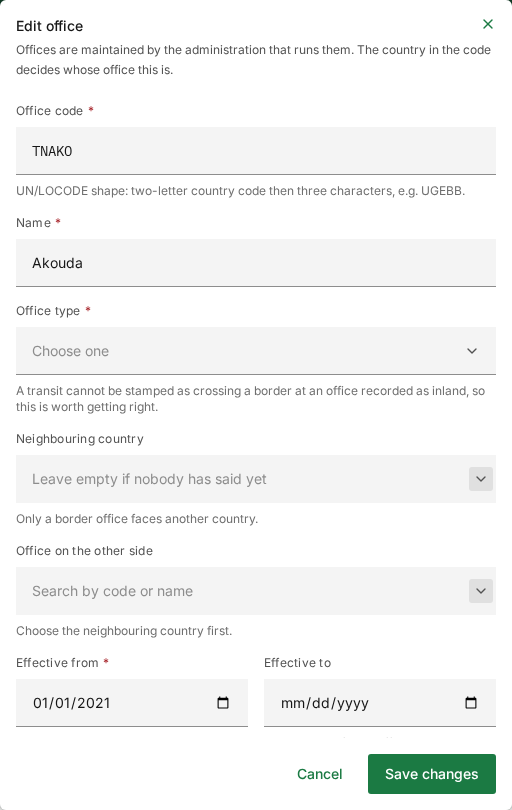
In the office's ⋮ menu, select Edit. The menu offers Edit only on offices you maintain.
-
Change what needs changing. The fields are the same as when adding.
-
Select Save changes, or Cancel to leave the office as it was.
A green Office updated message confirms it.
Most offices came from the seed data with no type, so Office type reads Choose one when you open them. ITS will not save an office without a type: choose Border or Inland before Save changes, even if you only meant to fix the name.
The fields
| Field | Required | What to enter | Rules |
|---|---|---|---|
| Office code | Yes | Country code plus three characters, for example TNB6Q | The country part must be a country you maintain. ITS refuses the office otherwise, and also refuses moving an existing office to another country. |
| Name | Yes | The office's name | |
| Office type | Yes | Border or Inland | "A transit cannot be stamped as crossing a border at an office recorded as inland, so this is worth getting right." |
| Neighbouring country | No | The country a border post faces | Only for a border office, and only the countries yours shares a frontier with. A country with no land or river frontier has none to offer. |
| Office on the other side | No | The post across the border | Only once that administration has registered it. Recording it says nothing about their row, which only they may change. |
| Effective from | Yes | The date the office came into use | Today by default. |
| Effective to | No | The date the office stops being used | Leave empty for an office still in use. |
An office recorded as Inland refuses every entry and exit stamp. If a border post is marked Inland by mistake, declarations crossing there are refused until the type is corrected. An office left as Not yet described is never refused.
The help under Office code gives UGEBB (Entebbe, Uganda) as its example
whoever you are. Use your own country's code.
Related pages
- Customs offices
- Import and export: many offices at once.
- Keep your customs offices up to date