Translations
AfITS is written in English and shown in the other five official languages of the African Union: French, Portuguese, Spanish, Arabic and Swahili. Those texts are translated by machine. Translations shows each text in English beside one of those languages, so that someone who reads the language well can correct wording that reads wrong.
A correction changes the words people read on the console's screens, in AfITS's e-mails, in its error messages, in reports and on the printed Transit Document.
Who can open this screen
System admin, the operator who runs the deployment, and Secretariat admin. Translations is under Administration in All areas.
Nobody else can be given it. A custom role cannot include Translations, and the built-in roles that hold it cannot have it taken away. A State Party or REC administrator does not see it in All areas.
Before you start
- You need System admin or Secretariat admin.
- Read the language you are correcting well. A correction goes live for everyone who uses AfITS in that language; there is no second approval.
Find a text
-
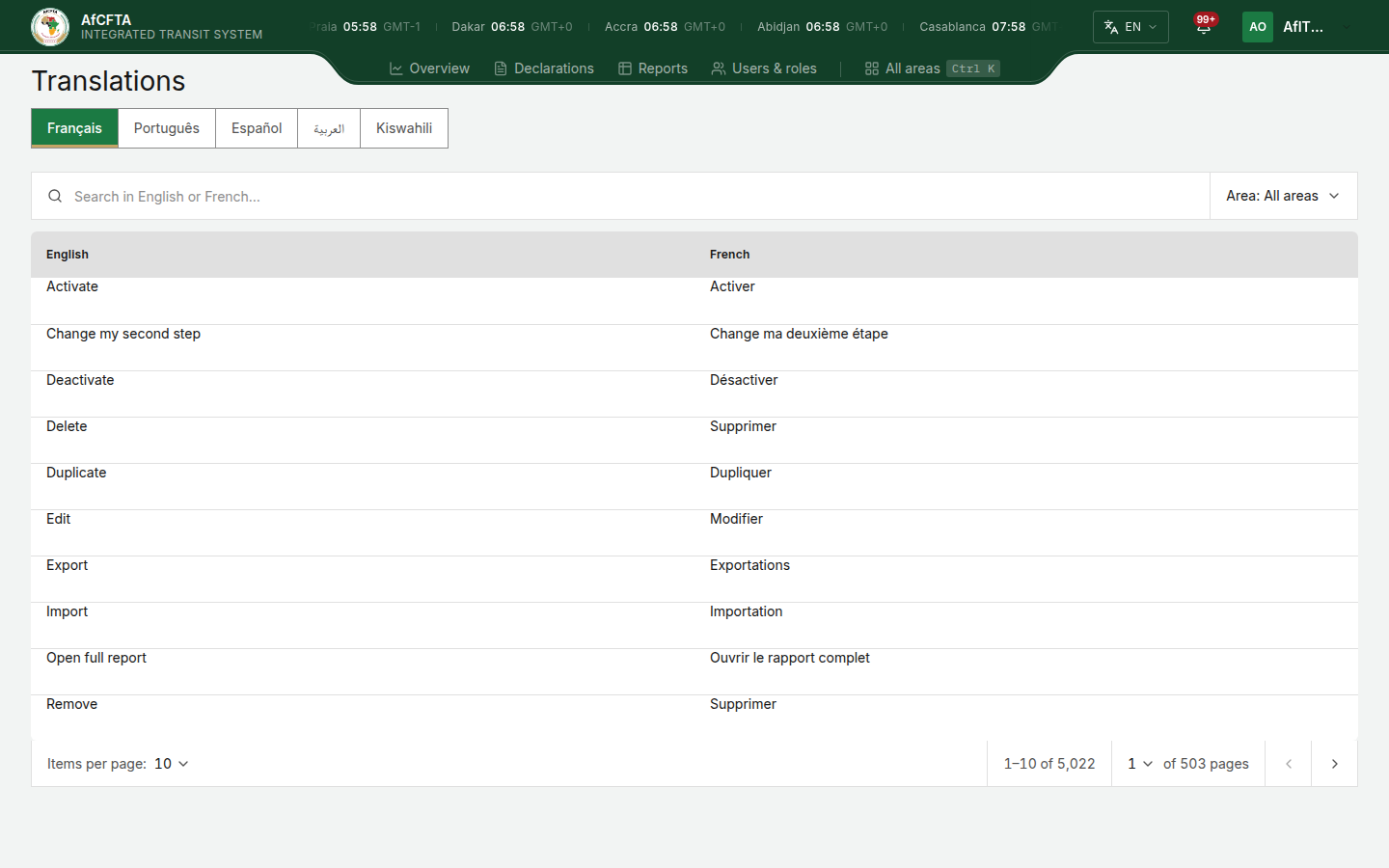
Select All areas, then Translations under Administration.
-
Select the language's tab. Each tab is named in its own language: Français, Português, Español, العربية and Kiswahili.
-
Type in Search in English or … to narrow the list. The search looks in the English, in the translation and in the text's key, and does not mind capital letters.
-
To look at one part of AfITS only, choose it in Area:
Area Texts shown Console screens Everything on the console's screens: buttons, headings, labels and messages E-mails The e-mails AfITS sends Error messages What AfITS says when it refuses a request Reports The names and wording of reports Transit Document The captions printed on the Transit Document
The list says nothing about whether a text is right. Read it and decide.
Correct a text
-
Select the text in the list. A panel opens on the right.
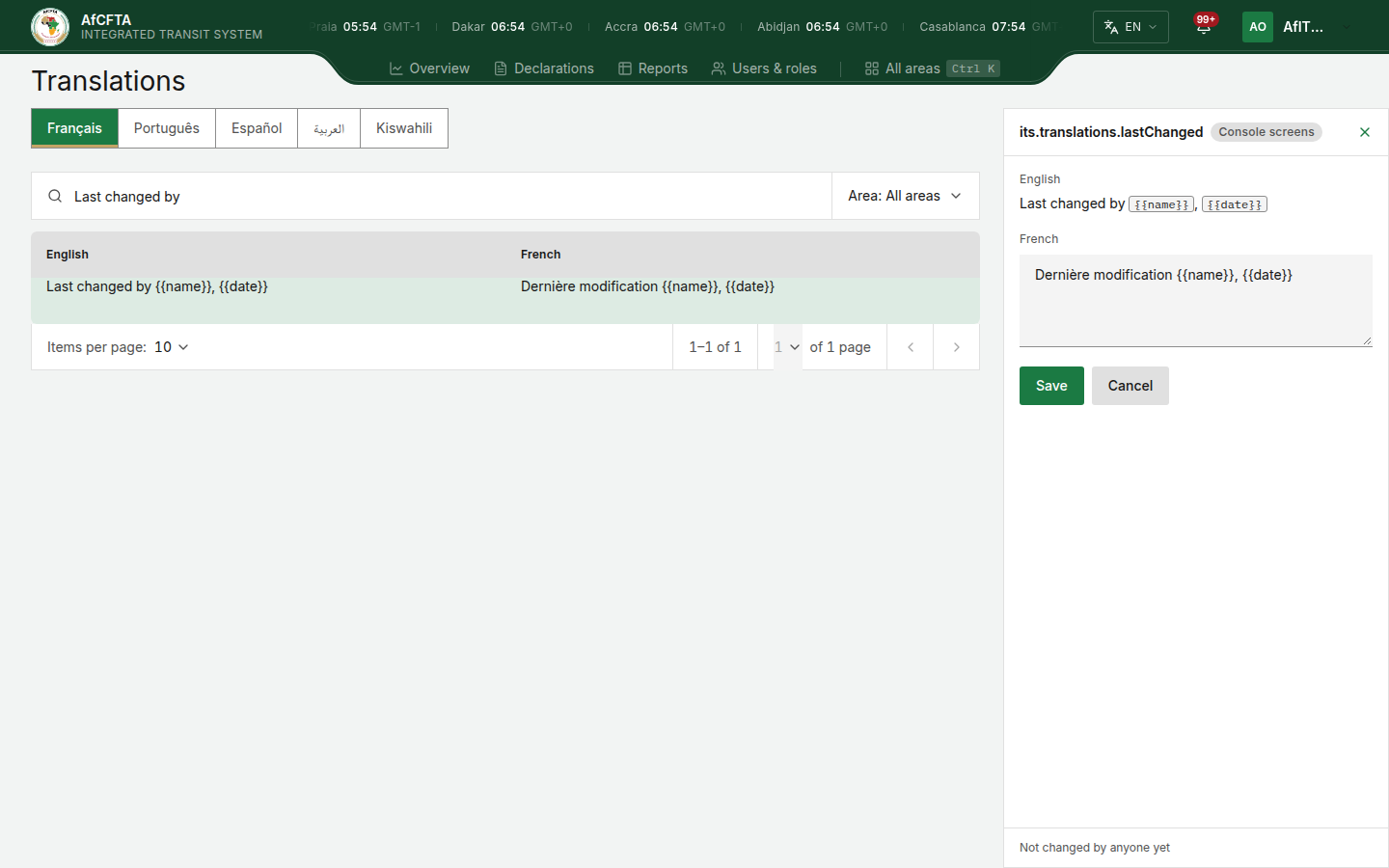
- At the top: the text's key, which says where it is used, and its area.
- English: the source. Anything in a box, such as
{{name}}, or a name such as AfITS, must appear in your text exactly as it is in the English. AfITS puts the right value in the place of a placeholder when it shows the text. - The language's field: the wording people read now. Change it here.
- At the bottom: who last corrected this text and when, or Not changed by anyone yet.
-
Change the wording in the field.
A text used with a number can come in several forms, one for each kind of number the language counts differently. The panel says which one you are correcting, such as Used when the number is 1 or Used for any other number. Correct each form on its own.
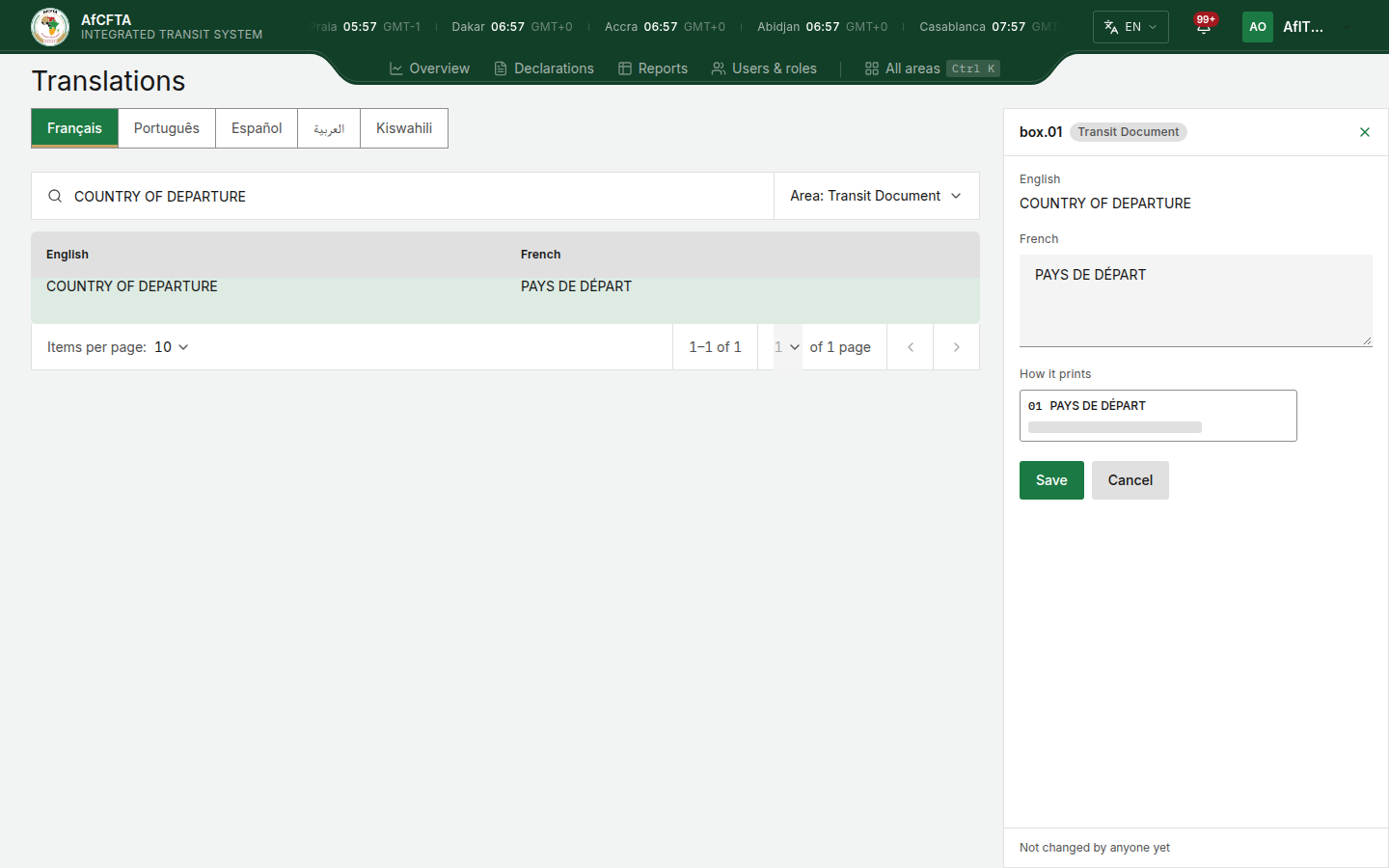
For a Transit Document caption, How it prints shows the caption in its box as it will appear on the printed document.
-
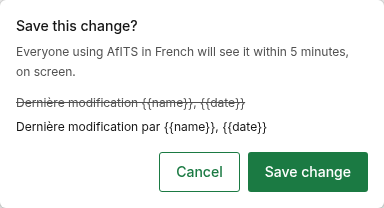
Select Save. If the text is the same as before, nothing happens. A window asks Save this change?, says who will see it and where, and shows the old wording struck through above the new.
-
Select Save change. Saved appears, and the list shows the new wording.
To leave without saving, select Cancel or choose another text.
When people see it
Everyone using AfITS in that language sees the new wording within 5 minutes. A Transit Document already printed keeps the old wording; every Transit Document printed after that uses the new one.
When AfITS refuses a correction
AfITS checks your text only when you select Save, and says what is wrong under the field. What you typed is kept, so you can fix it and save again.
| Message | What to do |
|---|---|
Keep {{name}} exactly as in the English. | Your text lost a placeholder or a name in a box, or changed it. Put it back exactly as the English has it. |
| Write the French before saving. | The field is empty. A text cannot be removed, only corrected. |
| The translation service did not answer. Nothing was changed; try again in a moment. | Nothing was saved. Try again; if it keeps happening, tell the AfITS support team. |
| The translation service refused to save this change, so nothing was changed. This is not about your permissions; please tell the AfITS support team. | Nothing was saved, and trying again will not help. AfITS's own account was refused, not yours: tell the AfITS support team. |
Every correction is recorded
Each saved correction records who made it, when, and the wording before and
after. The Secretariat can find it in the Audit trail
as a Data change whose resource is translation_correction.
What this screen does not change
- English. English is the source of every other language. A change to it comes with a new release of AfITS.
- The sign-in pages. The sign-in, password and second-step pages belong to the sign-in service and are not listed here.