Roles and permissions
A role is a named set of permissions. Everything a person can see and do in ITS comes from the roles on their account. What a role grants takes effect for everybody who holds it, immediately.
The Roles tab lists every role, shows what each one grants, and lets the operator build roles of their own when the built-in ones do not fit.
Who can open this screen
Only System admin, the operator who runs the deployment.
| You are signed in as | What you see |
|---|---|
| The operator (System admin) | Users & roles has a Roles tab, with New role and every role. |
| The Secretariat admin | No Roles tab. |
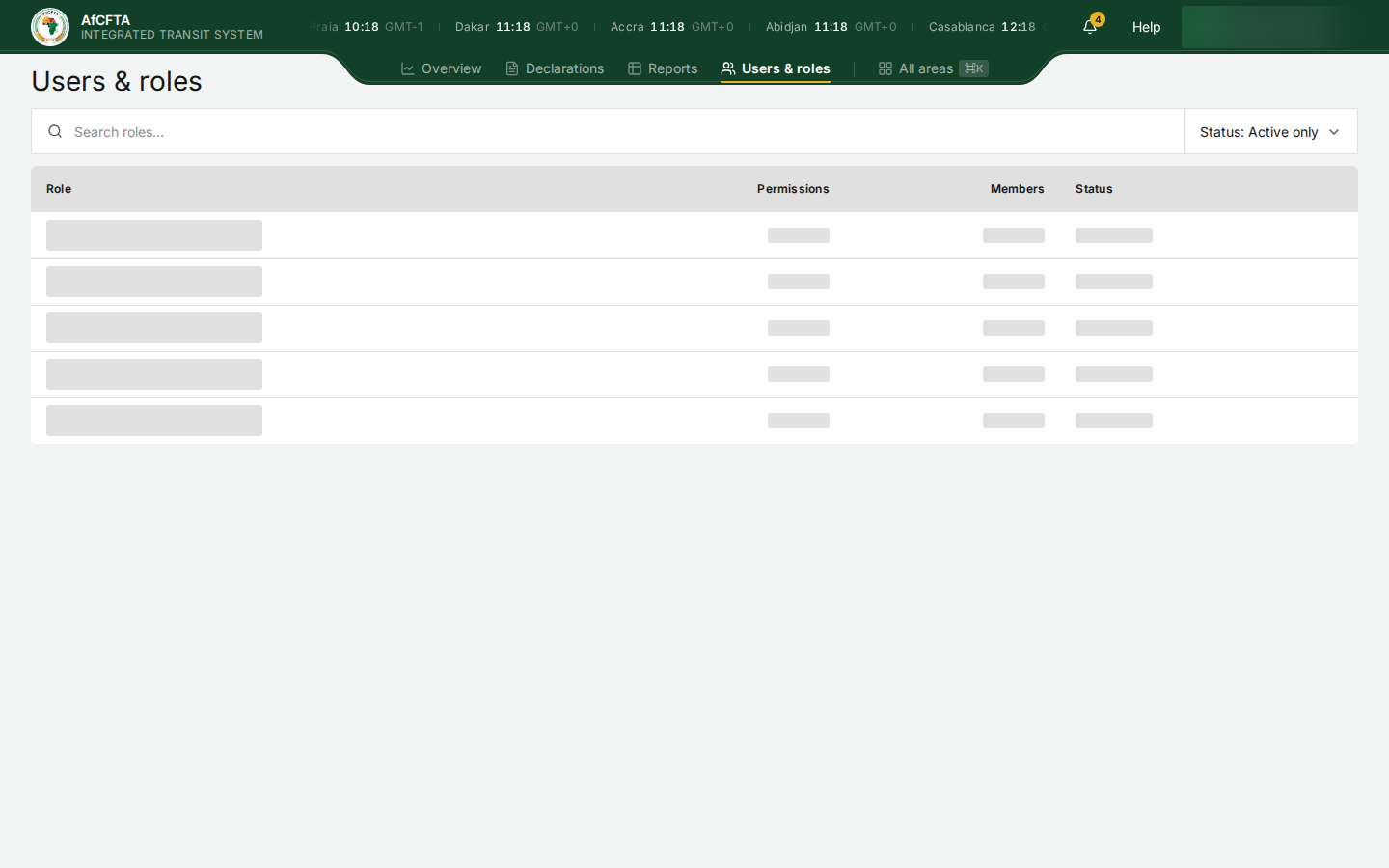
| A State Party or REC administrator | No Roles tab. Typing its address shows grey placeholder rows and Loading roles… that never finish. |
To know what a role grants without this screen, read What each role can do.
Before you start
- You need System admin.
- Know which job you are describing. Most people need one of the built-in roles; a custom role is for a job none of them fits.
How to open it
- Select Users & roles in the header.
- Select the Roles tab.
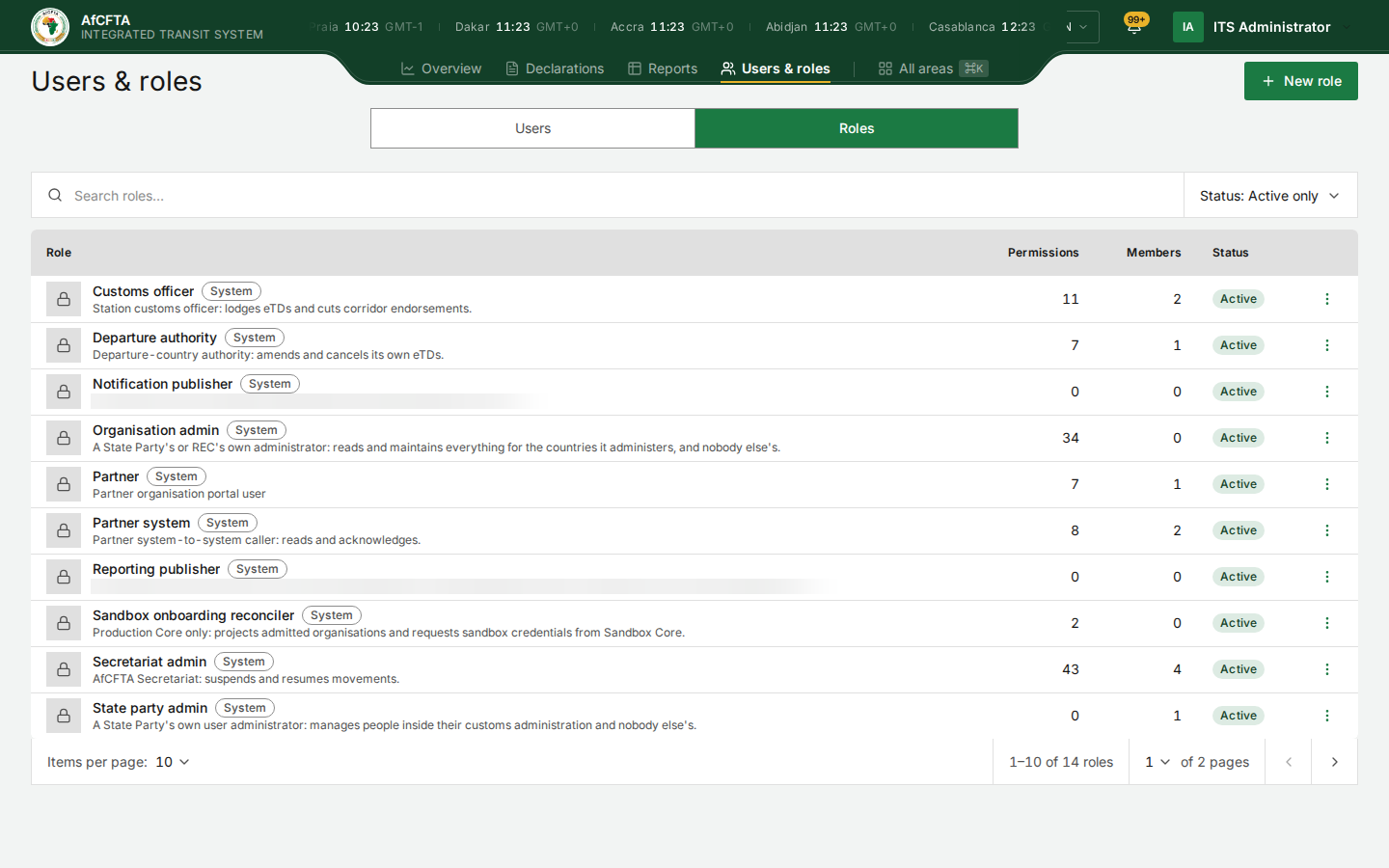
On the page
| On the page | What it is for |
|---|---|
| New role | Build a custom role. |
| Search roles… | Narrows the list by name or description. |
| Status | Active only or Including inactive. |
| Role | A padlock for a system role, the name, a System or Custom badge, and the description. |
| Permissions | How many permissions the role grants. |
| Members | How many people hold it. |
| Status | Active or Inactive. |
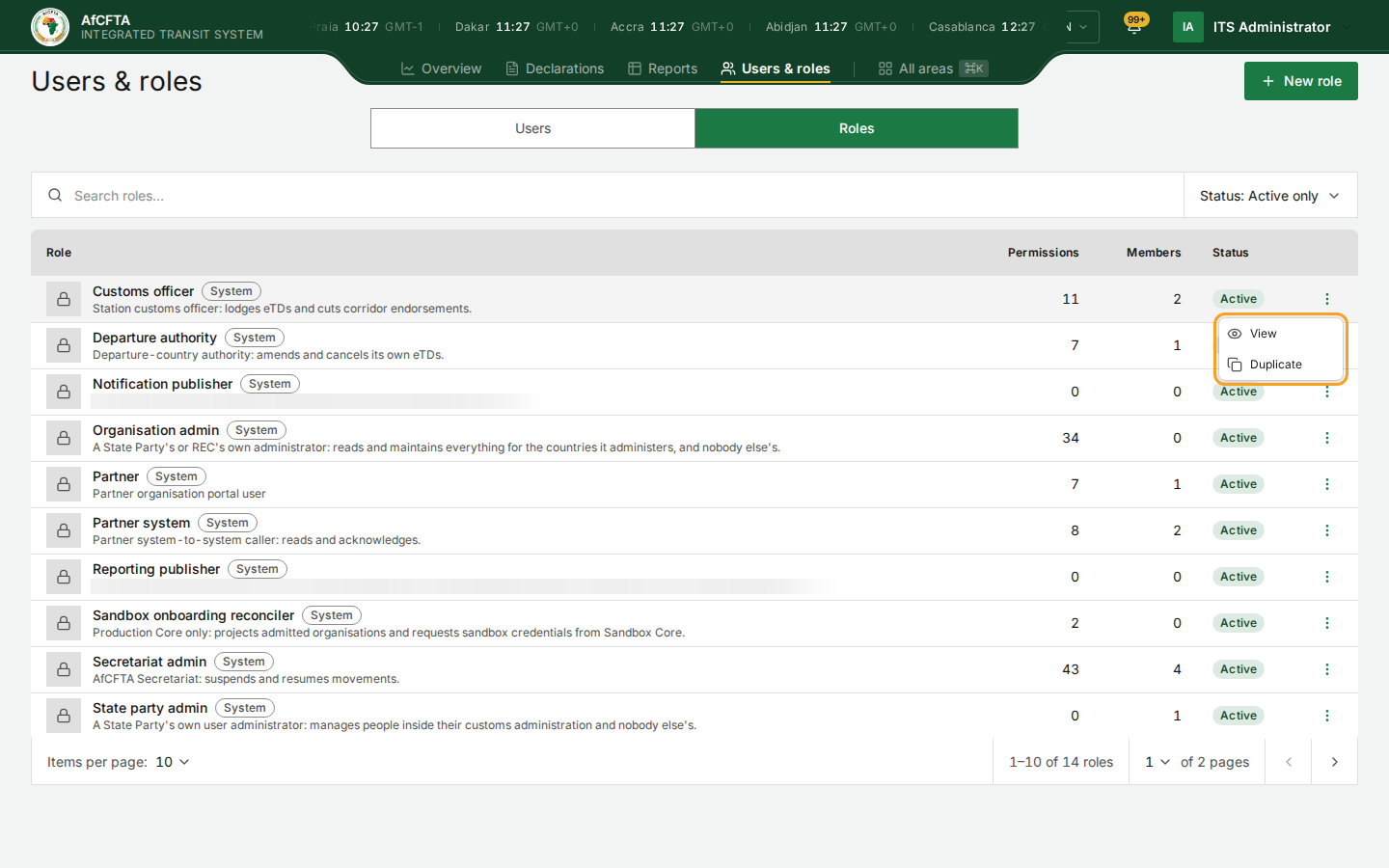
| ⋮ (Role actions) | View and Duplicate for a system role; also Edit and Delete for a custom one. |
System roles and custom roles
| System roles | Custom roles | |
|---|---|---|
| Where they come from | Part of the deployment | Built on this screen |
| Badge | System, with a padlock | Custom |
| What you can do | View, Duplicate | View, Duplicate, Edit, Delete |
"A system role ships with the deployment. It is read-only." To change what a system role grants, the ITS team changes the deployment.
The roles for people and the roles for systems are described in What each role can do. Only give people the roles for people.
Look inside a role
-
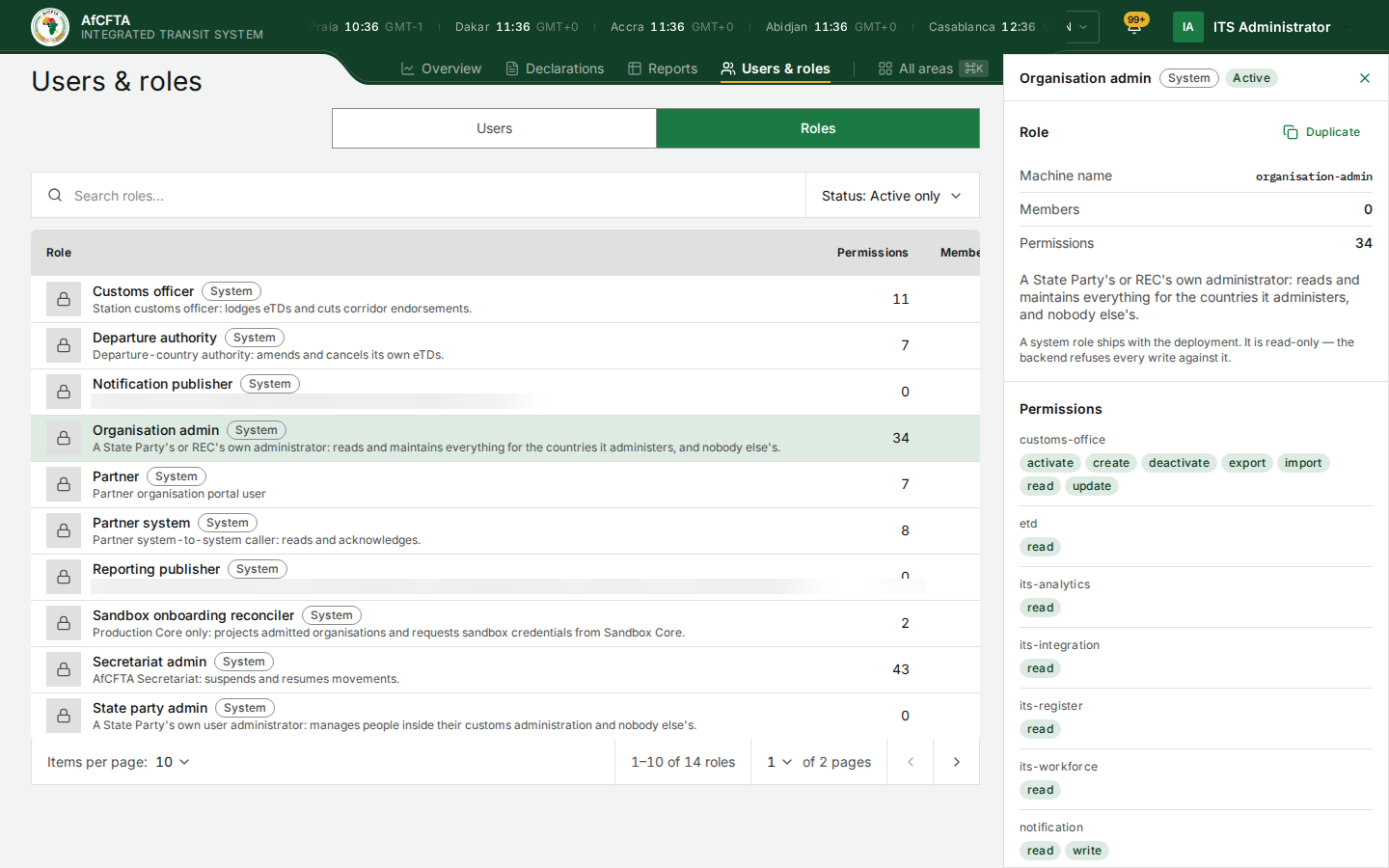
In the role's ⋮ menu, select View. A panel opens on the right.
-
Read the panel:
Panel section What it shows Role Machine name (the role's fixed internal name, for example organisation-admin), Members, Permissions (the count), the description, and Duplicate.Permissions One line per area, with the actions granted on it: for example customs-office activate create deactivate export import read update.
The areas are written with their internal names. The ones you will meet most:
| Area | What it covers |
|---|---|
etd | Declarations: read, and for systems issue (lodge), endorse (stamp), amend, attach, cancel, acknowledge. |
its-analytics, its-register, its-integration, its-workforce | The Reports areas: Transit volumes and Time & delays; Register; Integration; Workforce. |
customs-office | The customs office register. |
governance | Governance. |
user, user-station | Users, and duty-station postings. |
notification | Notifications and the bell. |
onboarding, onboarding-self | The integration workspace. |
Build a custom role
The quickest way is to start from the closest system role.
- In that role's ⋮ menu, select Duplicate. The copy is named "Copy of" and the original name.
- Or select New role to start from nothing.
- Give the role a name people will recognise, and a description saying who it is for.
- Choose the permissions. Use Search permissions… to find an area, Select all and Clear all to start over.
- Select Create role (or Create copy), or close the window to keep nothing.
A role with no permissions can be created. Anyone holding it can sign in but do nothing.
Then give the role to people on Users. A State Party or REC administrator can only give the roles their organisation is allowed to give, so a custom role is, for now, something the Secretariat gives.
Known problems
Organisation admin shows 0 members, although every State Party and REC administrator holds it, and the member counts across all roles add up to more people than the Users tab lists. The counts do not tell you who holds a role.
On the development system Organisation admin counts 34 permissions and
Secretariat admin 43. Both include seven tin-scheme permissions for a register ITS no longer has
(you can see them in the role's panel). They grant nothing.
Several built-in descriptions name internal parts of ITS ("Production Core only…", "Outbound only…"). They are roles for systems; the descriptions are for the people who run the deployment.