Change a setting
Change a setting when the Secretariat has decided a new limit or rule for the continent. A change applies to every State Party and every REC at once, from the moment you choose, so for a limit or a transit rule the portal makes you look at its impact on recent declarations before it lets you save.
A change never edits a value already recorded. It adds a new value with its own start moment, and the earlier ones stay in the setting's History.
Before you start
- You need Secretariat admin. System admin can also change the Declarations and Transit rules sections. Everyone else reads the page only. See Who can read and who can change.
- Have ready: the new value, inside the range shown under Can be set between, and the UTC day and time it takes effect.
- The start must be at least one minute from now. A change can never start in the past, not even a few seconds ago. To make a change apply as soon as possible, choose a moment a couple of minutes ahead.
- Know who will be told. For a change in Declarations or Transit rules, the administrators of every LIVE State Party and REC are e-mailed and notified in ITS. For Operations, only the Secretariat is notified. See How you hear about a change.
Change a limit or a transit rule
-
On Settings, find the setting. As cards or as a table, select Change limit (in Declarations) or Change (in Transit rules). The same button is at the bottom of the setting's details panel.
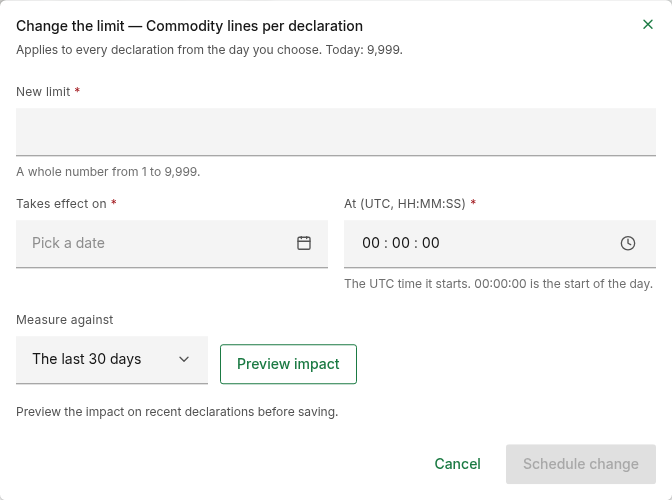
The window names the setting, for example "Change the limit — Commodity lines per declaration", and states the value that applies today.
-
Type the New limit (or New value). Use digits only, with a full stop before any decimals and no thousands separators. The line under the field gives the range.
-
In Takes effect on, pick the UTC day. It starts empty: there is no day chosen for you.
-
In At (UTC, HH:MM:SS), set the UTC time of day it starts, on a 24-hour clock. It starts at
00:00:00, the very start of the day.- Type two digits each for hours, minutes and seconds; the cursor moves on
by itself. The up and down arrow keys step the part you are in. You can
also paste a whole time such as
06:30:15. - Or select the clock button, Choose a time, pick the Hours, Minutes and Seconds from the lists, and select Done.
- Once the day and time are both filled in, the line under the field shows the same moment in your own time zone, for example "Your time: 15 Nov 2026 09:30:00 UTC+3". Check it: it is the easiest way to catch a time entered as local time by mistake.
- Type two digits each for hours, minutes and seconds; the cursor moves on
by itself. The up and down arrow keys step the part you are in. You can
also paste a whole time such as
-
In Measure against, choose the period of recent declarations to test the value on: The last 7 days, The last 30 days or The last 90 days.
-
Select Preview impact, and read the impact preview. If the figures are not what you intended, change the value and select Preview impact again.
-
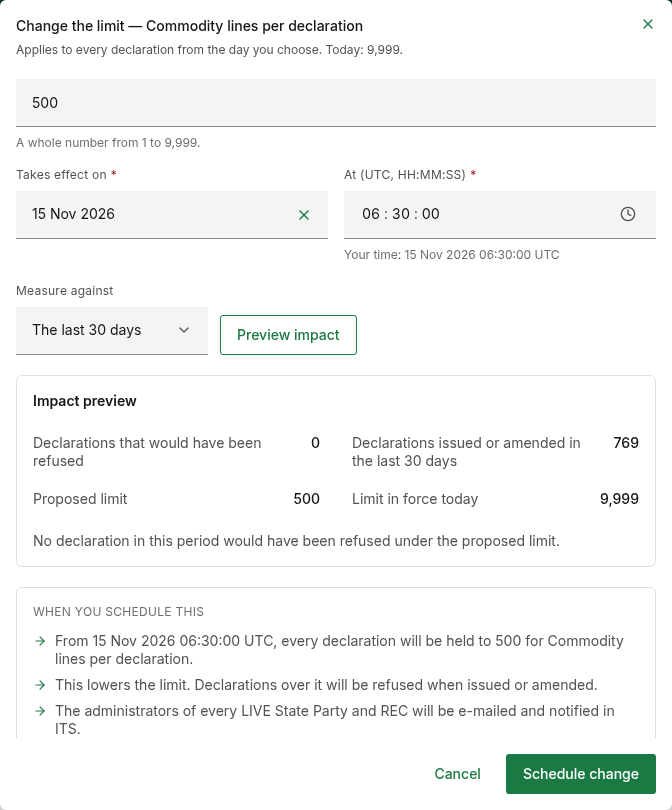
Read When you schedule this, at the bottom of the window. It says what will happen, from when, and who will be told (see below).
-
Select Schedule change. It stays greyed out until a preview of exactly the value and period in the window is on screen. There is no second confirmation: this saves.
A green Limit recorded or Rule recorded message confirms it, with "The administrators of every LIVE State Party and REC are being e-mailed and notified." The window closes and the setting lists the change under Scheduled changes until its moment comes, then shows it as the value in force.
If the change does not alter what applies, for example the same value as the one already in force, nobody is told.
Just after you save, the setting's History already shows the new row, but the value in force and Scheduled changes on the card can take up to about 30 seconds to show it. This is only what the page displays: the change itself is recorded at once and starts at the moment you chose, never earlier. Reload the page after half a minute if it still looks unchanged.
What "When you schedule this" says
The panel appears once the value, the day and the time are complete and far enough ahead and, for a limit or a transit rule, once a preview of them is on screen.
| Sentence | When you see it |
|---|---|
| "From moment, every declaration will be held to value for setting." | Always, for a limit. |
| "From moment, setting will be value for every transit." | Always, for a transit rule. |
| "From moment, setting will be value." | Always, for an operations setting. |
| "This lowers the limit. Declarations over it will be refused when issued or amended." | The new limit is lower than the one in force. |
| "This tightens the rule. Declarations outside it will be refused when issued or when their dates change." | The new Longest authorised transit or Back-dating of the transit start is lower than the one in force. |
| "This shortens the grace. An open transit counts overdue sooner after its authorised end." | The new Grace before a transit counts overdue is lower than the one in force. |
| "The administrators of every LIVE State Party and REC will be e-mailed and notified in ITS." | Always, for a limit or a transit rule. |
| "The Secretariat will be notified in ITS." | Always, for an operations setting. |
Read the impact preview
The preview saves nothing. It measures the value you typed against the declarations issued or amended in the period you chose.
| Figure | Meaning |
|---|---|
| Declarations that would have been refused | How many of those declarations are over the proposed limit or outside the proposed rule. |
| Declarations issued or amended in the last n days | How many declarations were measured. |
| Proposed limit or Proposed value | The value you typed. |
| Limit in force today or Value in force today | The value it would replace. |
When nothing would have been refused, the preview says "No declaration in this period would have been refused under the proposed limit." (or "… proposed value.").
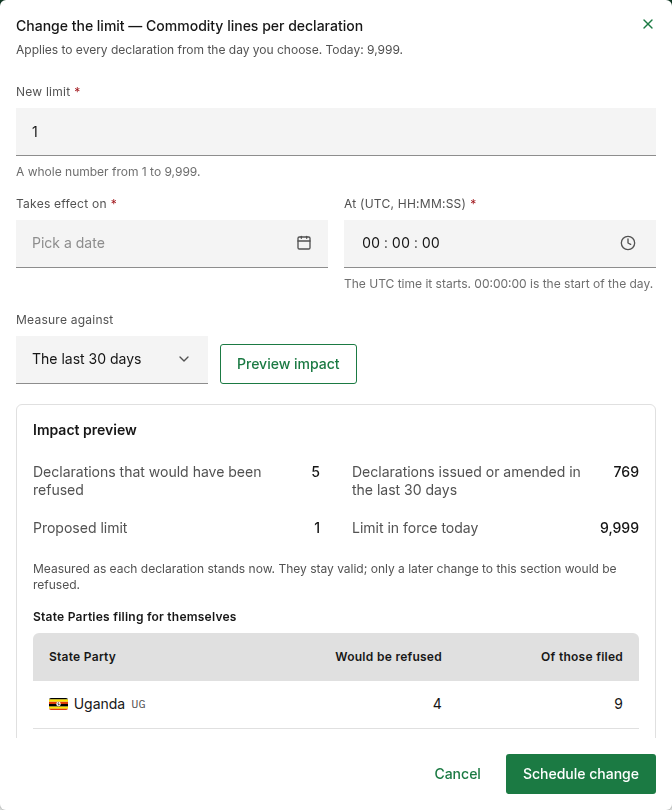
Otherwise a note explains that each declaration is measured as it stands now and stays valid, and that only a later change to the part the setting governs would be refused. Then it shows who filed the declarations counted, in up to three tables. Each has the columns Would be refused and Of those filed.
| Table | Rows |
|---|---|
| State Parties filing for themselves | One per State Party. |
| RECs filing on behalf of a member | One per REC and the member it filed On behalf of. |
| The Secretariat, or a filer no longer in the register | Filed by shows AfCFTA Secretariat or Unknown filer. |
The tables list a limited number of filers. Any beyond them are added up in the line "Declarations from filers beyond those listed: total".
If you change the value or the period after a preview, the figures are replaced by "The value or period changed. Preview the impact again before saving." and Schedule change is greyed out until you do. Changing only the day or the time does not need a new preview.
The preview for the overdue grace
Grace before a transit counts overdue refuses no declaration, so its preview is one comparison instead of tables:
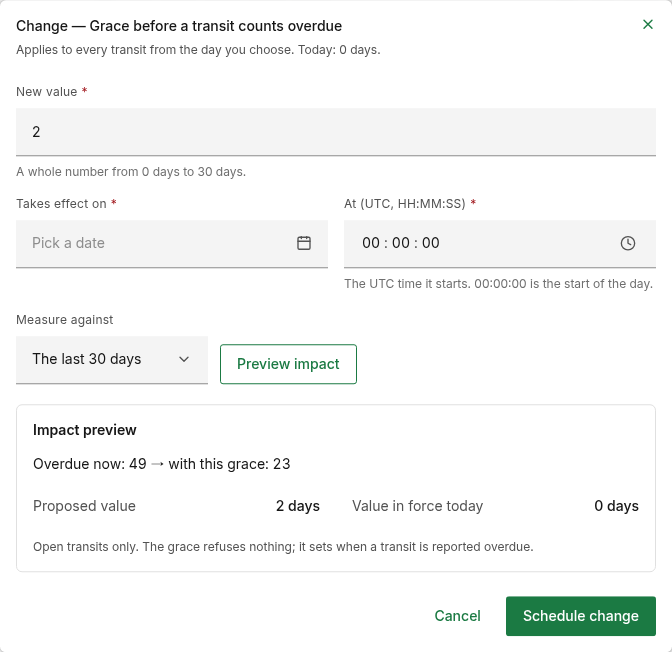
"Overdue now: count → with this grace: count" compares how many open transits are overdue now with how many would be under the grace you typed. The note under it reads "Open transits only. The grace refuses nothing; it sets when a transit is reported overdue." See Grace before a transit counts overdue.
Change an operations setting
An operations setting governs no declaration, so there is no preview.
-
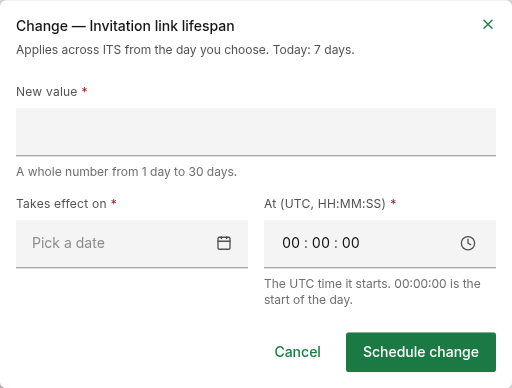
On Settings, in Operations, select Change on the setting.
-
Type the New value, a whole number in the range under the field.
-
Pick the day in Takes effect on and set the time in At (UTC, HH:MM:SS), at least one minute from now.
-
Read When you schedule this, then select Schedule change.
A green Setting recorded message confirms it, with "The Secretariat is being notified."
Leave without saving
Select Cancel in the window. If you have typed anything, Discard your changes? asks you to confirm: "What you have entered on this form will not be saved." Select Discard changes, or Keep editing to go back.
What the messages mean
| Message | What to do |
|---|---|
| "Enter the new limit." / "Enter the new value." | The value is empty. |
| "Enter a whole number, digits only." | The setting takes no decimals. Remove decimals, spaces and separators. |
| "Enter a number, digits only, with a full stop before any decimals." | Remove commas, spaces and letters, for example 1500000.50. |
| "Use at most n decimal places." | Money limits take two decimal places, weights three. |
| "The lowest this limit can be is minimum." / "The lowest this can be is minimum." | Type a value at or above the lowest in Can be set between. |
| "The most the system can record is maximum." / "The highest this can be is maximum." | Type a value at or below the highest in Can be set between. |
| "Choose the day it takes effect." | Takes effect on is empty. |
| "Choose today or a later day." | The day you picked has already passed in UTC. |
| "Enter the time as HH:MM:SS on a 24-hour clock, for example 06:00:00." | The time is incomplete or not a real time. |
| "Choose a moment at least 1 minute from now. The earliest is moment." | The day and time you chose are in the past, or less than a minute ahead. Set a later time, or a later day. The window checks this every second, so a moment that was fine when you typed it can turn too soon while you read the preview. |
| Some entries need attention | ITS refused the entry when saving. Correct the field marked in the window. If it names the one-minute rule, the moment went past while the window was open: set a later time. |
| Request failed, with "This arrangement is already on file from that effective date." | This setting already has a value recorded for exactly this day and time, even if that value was withdrawn. Each setting holds one value per start moment. Choose a different time or day. |
| Request failed, with any other text | ITS could not complete the request. Try again, and if it keeps happening report it with the correlation ID shown. |
See the history of a setting
- On Settings, select the setting's card or row to open its details.
- Look under History. Only the Secretariat sees it.
A setting nobody has changed shows "Never set by the Secretariat. The system maximum applies." in Declarations, or "Never set by the Secretariat. The default applies." in the other sections. Once a value has been recorded, History is a table of every value recorded for the setting, the latest first. Withdrawn values stay in it.
| Column | Meaning |
|---|---|
| Limit or Value | The value recorded. |
| From | The moment it starts, in UTC, for example 30 Oct 2026 02:02:03 UTC. |
| Until | The day it ends, or Open-ended. A value recorded on this page is always open-ended. |
| State | See below. |
| Recorded | "Set by user on day", and "changed by user on day" if it was touched afterwards. Point at it to see the exact time. |
| State | Meaning |
|---|---|
| In force (green) | The value that applies now. |
| Scheduled (amber) | Its start moment is still ahead. |
| Overridden by a later limit / Overridden by a later value (grey) | It has started and has not ended, but a value with a later start applies in its place. |
| Ended | Its Until day has passed. |
| Withdrawn | It was withdrawn and applies to nothing. |
When two values overlap, the one with the later start applies.
State is worked out from your computer's clock, while the value in force at the top of the panel comes from ITS. In the seconds around a start moment the two can briefly disagree.
Withdraw a change
Withdraw a value to cancel a scheduled change before its moment, or to stop a value that is in force. A recorded value cannot be edited or deleted: withdrawing it and recording another is how you correct one.
-
Open the setting's details, and find the row under History.
-
On the row, select Withdraw. The button is offered on rows that are In force, Scheduled or Overridden.
-
Read Withdraw this limit? (or Withdraw this value?). It says what will apply instead:
- for a limit: "The limit of value from moment stops at once. Setting returns to the previous limit, or the system maximum. The row stays in the history.";
- for a transit rule or an operations setting: "The value value from moment stops at once. Setting returns to the previous value, or the default of default. The row stays in the history."
It also says who will be told, as for a change.
-
Select Withdraw limit (or Withdraw value), or Go back to keep it.
The value stops applying at once. A green Limit withdrawn, Rule withdrawn or Setting withdrawn message confirms it, and the same people are told as for a change. The row stays in the history as Withdrawn.
Settings has no way to bring a withdrawn value back, and a setting cannot take a second value for the same start moment. To restore the value, record it again with a different time or day.