Sessions
A session is one sign-in by a person or a connected system, and everything done under it until the sign-out. The Sessions tab lists sessions instead of single events, so you can see at a glance who is signed in, from where, for how long, and how much of what they asked was refused. From any session you can open everything it did on the Activity tab.
Nothing on this tab changes anything. You cannot end a session from here.
Before you start
- You need the Secretariat admin or System admin role, as for the rest of the Audit trail.
- The tab reads recent sessions only. A session that has left the period the audit trail reads is not listed.
How to open it
- Select All areas in the header, then Audit trail under Administration.
- Select the Sessions tab.
The list opens with the session seen most recently at the top.
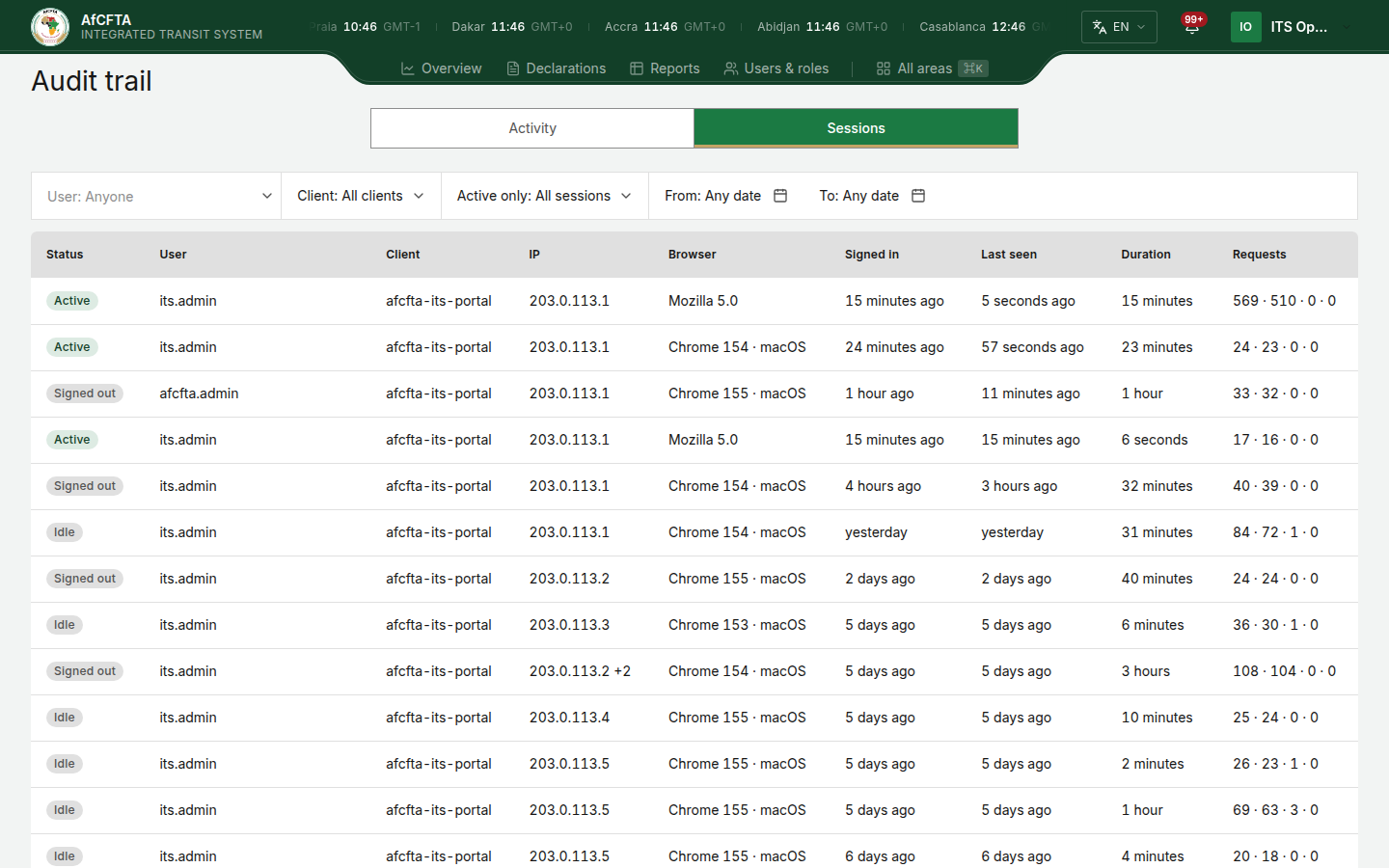
The page at a glance
| Column | What it shows |
|---|---|
| Status | Active, Idle or Signed out. See below. |
| User | The username. Hover over it for the user's id. |
| Client | The application or connected system that signed in, as it was recorded. |
| IP | The first address the session was seen from, then + and a number when it was seen from more. Hover over it for the others. |
| Browser | The browser and system, or the tool a connected system called with. |
| Signed in | How long ago the session started, for example "3 hours ago". Hover over it for the exact time. |
| Last seen | How long ago the session last did anything. Hover over it for the exact time. |
| Duration | How long the session lasted, for example "19 minutes". |
| Requests | Four numbers, for example 12 · 10 · 2 · 0. See below. |
Every column is always shown. When the table has less room than it needs, for example on a phone or with a session's panel open, it scrolls sideways inside its own box.
The Status tags
| Tag | Colour | Meaning |
|---|---|---|
| Active | Green | Not signed out, and seen in the last 15 minutes. |
| Idle | Grey | Not signed out, and not seen for more than 15 minutes. |
| Signed out | Grey | A sign-out was recorded for the session. |
The tags are worked out again every minute while the page is open, so an Active session turns Idle in front of you once it has been quiet for 15 minutes.
The Requests column
The four numbers are, in order: all requests the session made, how many succeeded, how many were refused, and how many failed on ITS's side. Hover over them to read it in words, for example "12 requests: 10 succeeded, 2 refused, 0 failed".
Signed in only means the session signed in and made no request.
When a session signed in before the period the audit trail reads, Signed in shows the first time the session was seen in that period instead.
Filter the list
- Select a filter above the table.
- Choose a value. The list reloads from the top.
- To start again, select Clear filters. It keeps your Items per page choice.
| Filter | Choices | Notes |
|---|---|---|
| User | Anyone, or one person | Type part of a name, username or e-mail address to search, as on the Activity tab. |
| Client | All clients, then every client the trail holds | The values are shown as they were recorded. |
| Active only | All sessions, Active in the last 15 min | |
| From, To | A day each; Any date when not set | Read on Last seen: the sessions last seen on or between those days. As on the Activity tab, a day is cut at midnight UTC. |
See what one session did
-
Select a session's row, or move to it with the keyboard and press
Enter.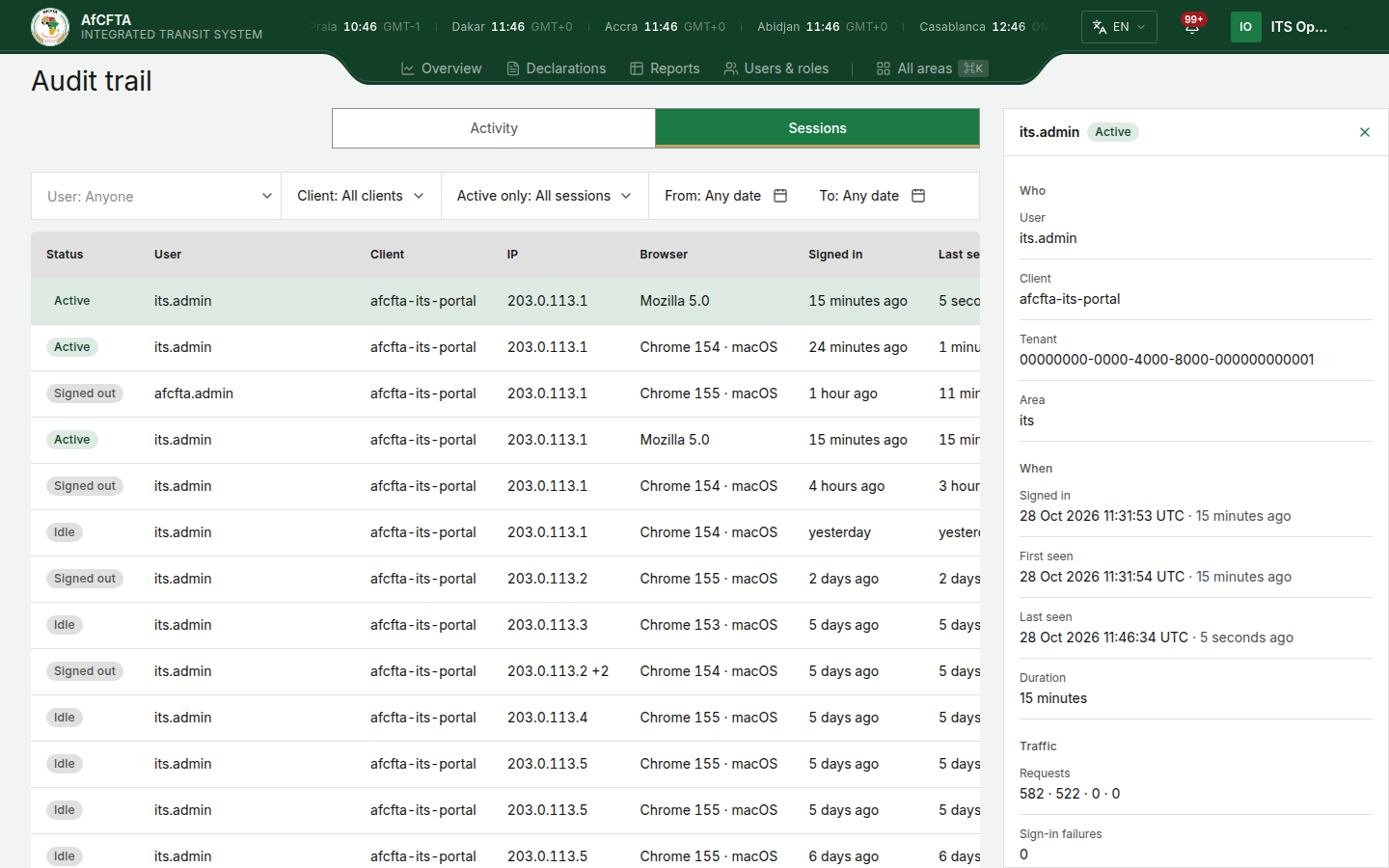
-
Read the panel at the right. Its title is the username, with the status tag beside it.
Section Fields Who User, Client, Tenant, and Area: the sign-in realm the session belongs to. When Signed in, First seen, Last seen and Signed out, each as the exact time and how long ago, then Duration. Signed out is there only when a sign-out was recorded. Traffic Requests (the same four numbers as in the table), Sign-in failures and Token refreshes, the number of times the session renewed itself in the background. Origin IP addresses, every address the session was seen from, and Browser. Screens The portal screens the session visited, when any were recorded. -
Select View this session's activity.
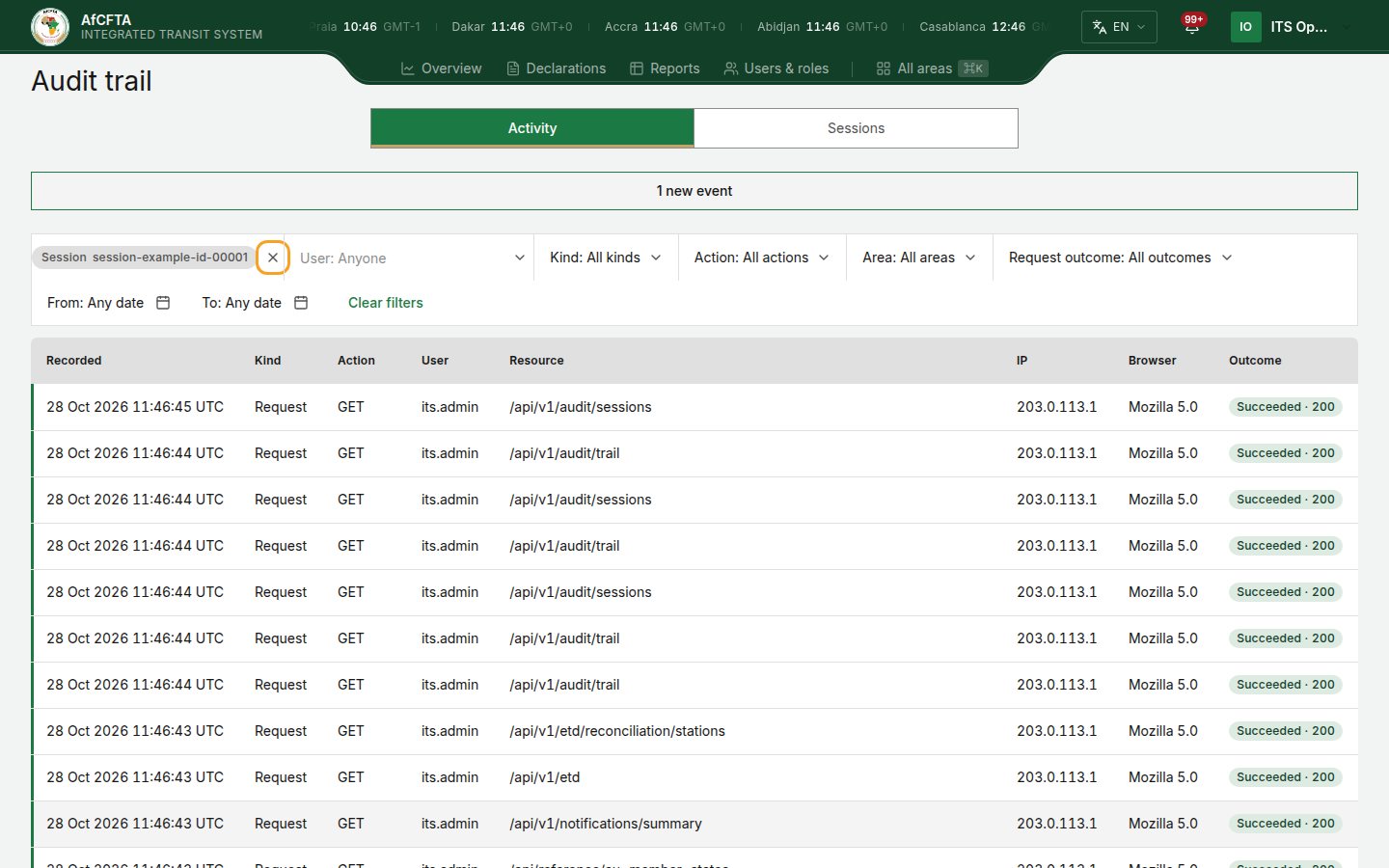
The Activity tab opens showing only that session's events, with a Session tag and the session's id at the start of the filters. You can add other filters on top, for example Request outcome to see only what was refused. To go back to everybody's activity, select the × beside the tag (Remove the session filter).
To close the panel without leaving the tab, select Close panel (the ×) or
press Esc.
In a session's panel, Area is the sign-in realm. On the Activity tab, Area is the part of ITS's records a data change was written to. The two are not related.
A long session can have more addresses or screens than the panel lists. It then says More addresses were seen than are shown or More screens were visited than are shown.
Move through the list
| In the footer | What it does |
|---|---|
| Items per page: | 10, 20, 50 or 100 rows; 50 unless you change it. |
| The range, for example 1–50 | Where you are in the list. This tab does not count the sessions, so there is no total. |
| Previous (‹) | Sessions seen more recently. |
| Next (›) | Sessions seen longer ago. |
While you are on the first page, the list reads itself again every minute, as long as the browser tab is in front. Later pages stay as you opened them. There is no refresh button.
What the messages mean
| You see | What it means | What to do |
|---|---|---|
| A bar reading This list may be up to 3 min behind. (the number varies) | The session list is running behind the recorded events by about that long, so the newest sessions and the latest Last seen times may be missing. | Wait and look again. The bar goes away once the list has caught up. |
| A bar reading Sessions are still being built after a deploy; this list may be incomplete. | The session list is being rebuilt after an update, and some sessions may be missing from it. | Wait and look again later. |
| Grey placeholder rows | The list is still loading. | Wait. |
| No sessions found, "Try a different filter, or a wider date range." | No session matches your filters. | Remove a filter or widen From and To. |
| That filter can't be used here, "The sessions list refused … Only user, client, last seen and the active window can filter sessions." | The sessions list does not accept one of the filters it was asked for. The message names it. | "Clear the filters and try again." |
| Session not available, "This session is no longer in the audit window, or it is not visible to you." (in the panel) | The session has left the period the audit trail reads, or your account may not read it. | Close the panel. |
| Audit trail unavailable, "The audit service could not be reached or failed, so recorded activity cannot be read right now." | The trail cannot be read at the moment. | Select Try again after a minute. "If it keeps happening, report it to support." |
| Another error message, sometimes with a Reference | The request failed for another reason. | Select Try again where it is offered, and quote the reference when you report it. |